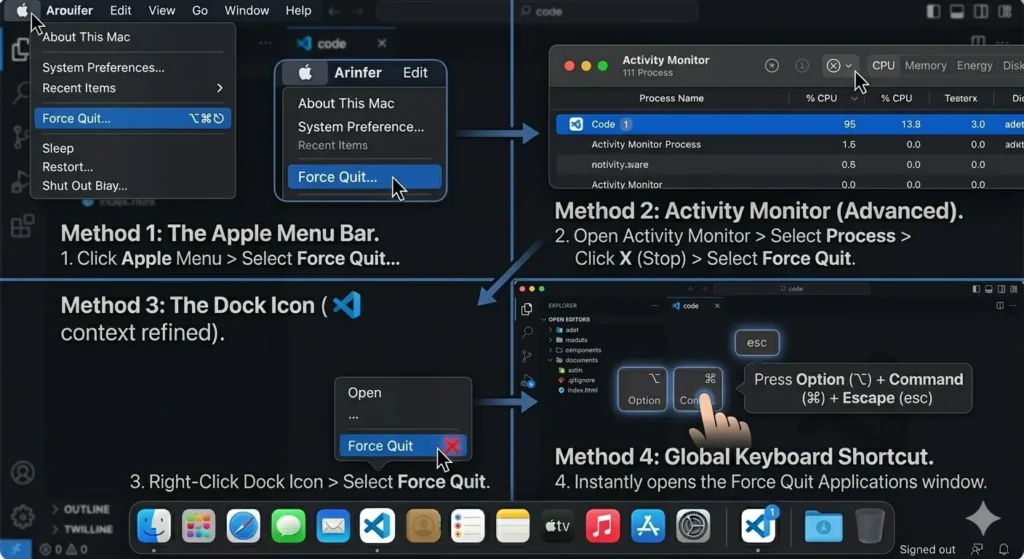
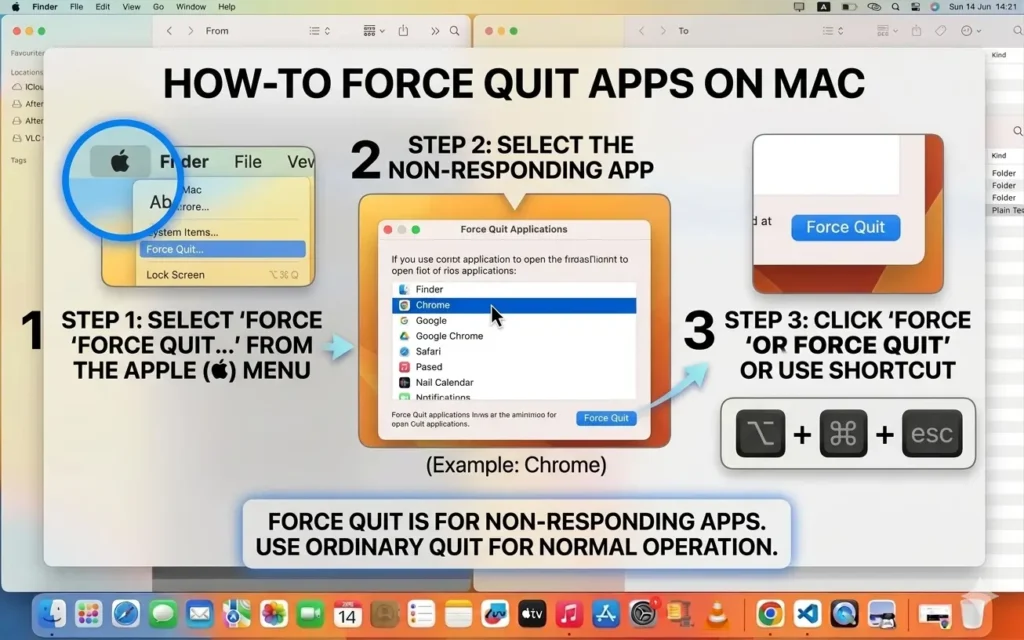
If you’re wondering how to force quit apps on Mac, you’re not alone. Sometimes applications freeze, stop responding, or become completely unresponsive. Fortunately, macOS includes several built-in tools that allow you to close frozen apps quickly and safely without restarting your computer.
In this tutorial, you’ll learn multiple ways to close unresponsive applications. Additionally, you’ll discover when force quitting is necessary, what happens after an app is forced to close, and how to prevent freezing issues in the future.
What Does Force Quit Apps on Mac Mean?
Force quitting is the process of immediately closing an application that is no longer responding. Unlike the normal Quit option, force quitting stops the application even when it is frozen.
For example, you may need to force quit an application when:
- An app stops responding
- The spinning beach ball appears continuously
- A program freezes during use
- An application uses excessive system resources
- A window refuses to close normally
Because force quitting ends an application instantly, unsaved work may be lost. Therefore, it should only be used when standard methods fail.
How to Force Quit Apps on Mac
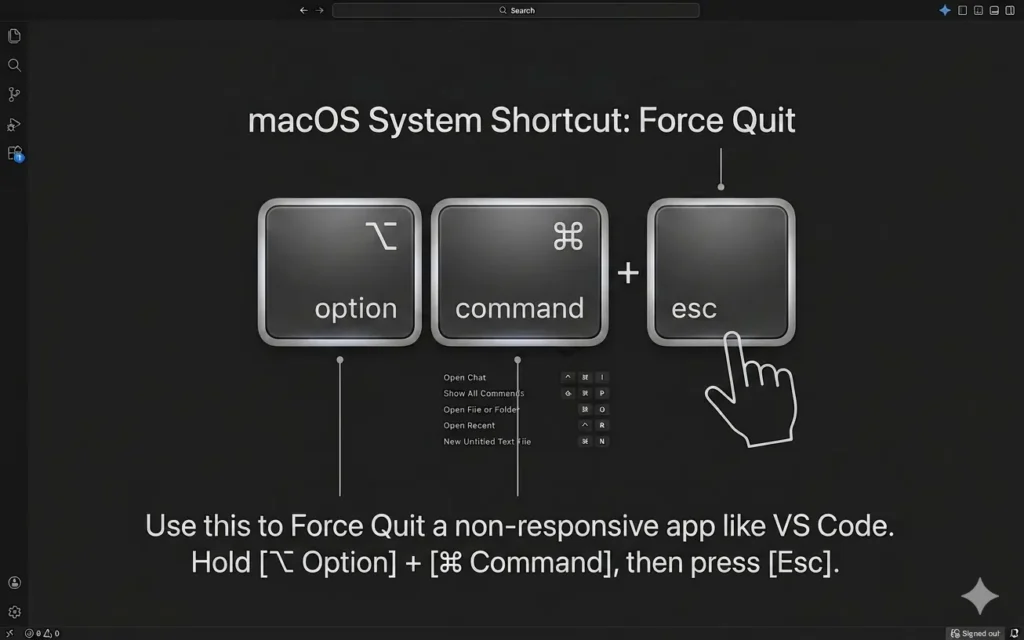
The quickest method uses a built-in keyboard shortcut.
Step 1
First, press:
Option + Command (⌘) + Esc
Step 2
Next, the Force Quit Applications window appears.
Step 3
Then, select the application that isn’t responding.
Step 4
Finally, click Force Quit.
As a result, macOS immediately closes the selected application. Furthermore, this method works even when the app window is completely frozen.
How to Close Frozen Apps From the Apple Menu
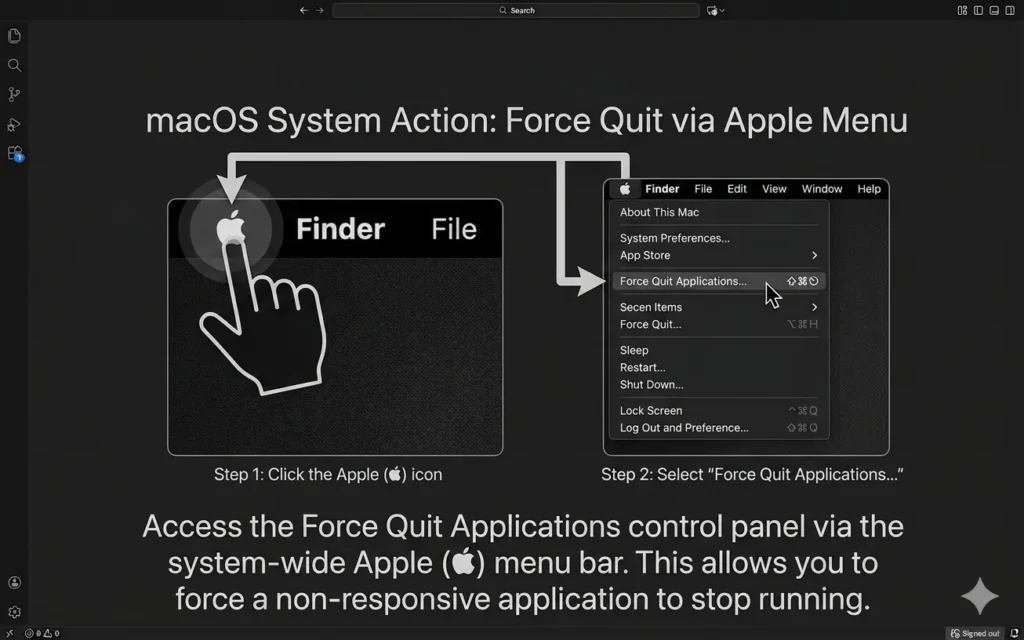
Alternatively, you can close frozen apps through the Apple menu.
Step 1
First, click the Apple logo in the upper-left corner of the screen.
Step 2
Next, select Force Quit.
Step 3
Then, choose the unresponsive application.
Step 4
Finally, click Force Quit again.
Consequently, the selected application closes without requiring a keyboard shortcut.
How to End Frozen Applications With Activity Monitor
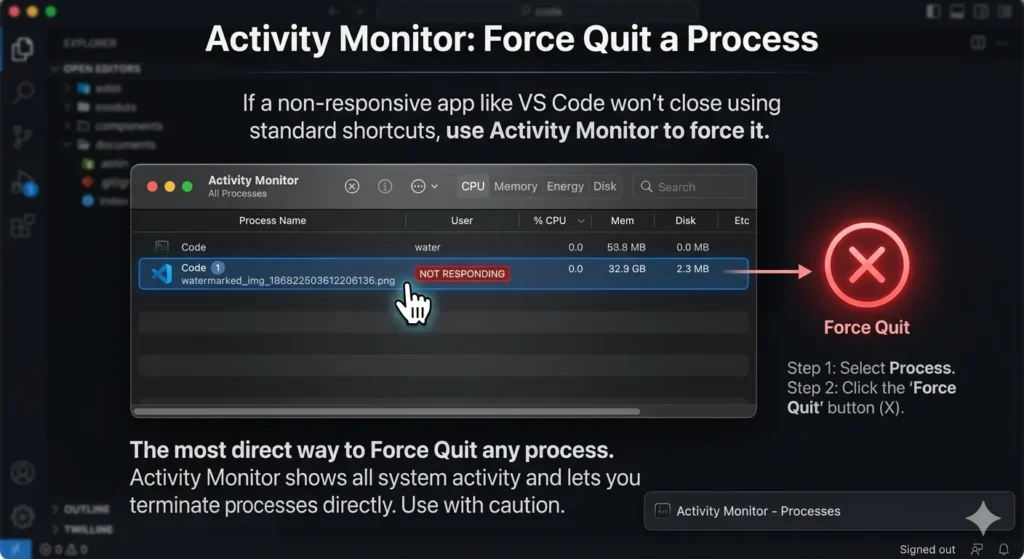
If an application remains unresponsive, Activity Monitor provides another solution.
Step 1
First, open Activity Monitor.
You can find it here:
Applications → Utilities → Activity Monitor
Step 2
Next, locate the problematic application in the list.
Step 3
Then, click the application name.
Step 4
Afterward, click the X button near the top of the window.
Step 5
Finally, select Force Quit.
As a result, the application is terminated at the system level. Moreover, Activity Monitor helps identify apps that are consuming excessive resources.
How to Close Stuck Apps From the Dock
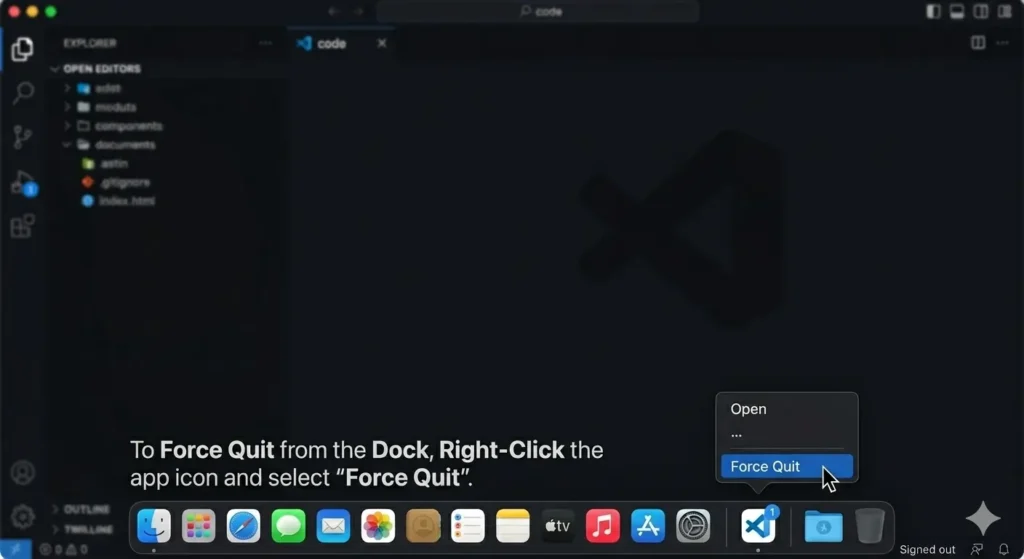
Meanwhile, you can also close stuck applications directly from the Dock.
Step 1
First, hold down the Option key.
Step 2
Next, right-click the application’s icon in the Dock.
Step 3
Then, choose Force Quit.
Consequently, the frozen application closes immediately.
What Happens When You Force Quit an App?
When an application is force quit:
- The application closes immediately.
- Unsaved changes may be lost.
- System resources are released.
- macOS continues operating normally.
Therefore, force quitting is generally safe. However, saving your work regularly is always recommended whenever possible.
Common Force Quit Apps on Mac Problems
App Won’t Close
First, try closing it through Activity Monitor.
Next, attempt the keyboard shortcut again.
Finally, restart your Mac if the issue continues.
Mac Is Completely Frozen
If the entire system becomes unresponsive:
- Press and hold the power button.
- Wait for the Mac to shut down.
- Restart the computer.
However, this should only be used as a last resort.
Applications Keep Freezing
If apps frequently stop responding:
- Install macOS updates.
- Update the affected applications.
- Free up storage space.
- Close unnecessary programs.
As a result, overall system performance may improve.
Tips to Prevent Frozen Apps
To reduce crashes and freezing problems:
- Keep macOS updated.
- Restart your Mac regularly.
- Avoid opening too many applications simultaneously.
- Monitor available storage space.
- Install trusted software only.
Additionally, routine maintenance helps keep your Mac running smoothly. Furthermore, updated software is less likely to experience compatibility issues.
Frequently Asked Questions About Force Quit Apps on Mac
What is the shortcut to force quit apps on Mac?
Simply press:
Option + Command (⌘) + Esc
Then, select the application and click Force Quit.
Is force quitting an app safe?
Yes. However, any unsaved work may be lost.
Why do apps freeze on Mac?
Applications may freeze because of software bugs, insufficient memory, outdated software, or resource conflicts.
Can I use Activity Monitor to close apps?
Yes. Activity Monitor allows you to terminate applications directly.
Does force quitting restart the app?
No. Force quitting only closes the application. However, you can reopen it manually afterward.
Conclusion
Now you know how to force quit apps on Mac using several different methods. First, you can use the keyboard shortcut for the fastest solution. Alternatively, you can use the Apple menu, Activity Monitor, or the Dock. Furthermore, each method works effectively when an application becomes unresponsive.
In addition, understanding why applications freeze can help you avoid future problems. Meanwhile, regular system maintenance can improve overall stability and performance.
As a result, you’ll be able to recover quickly from frozen applications and continue working without unnecessary interruptions. Ultimately, learning how to force quit apps on Mac is an essential troubleshooting skill for every Mac user.
Related Mac Tutorials
If an application stops responding, these guides can help you troubleshoot your Mac and continue working more efficiently:
- How to Record Screen on Mac – Learn how to create screen recordings and troubleshoot recording issues.
- How to Take a Screenshot on Mac – Capture screenshots to document app errors and system issues.
- How to Copy and Paste on Mac – Quickly move and share information after restarting an app.
- How to Find Downloaded Files on Mac – Locate files that may have been affected by a frozen application.