
If you’re wondering how to copy and paste on Mac, you’ll be happy to know that the process is simple and works across almost every application. Whether you’re copying text, files, images, or folders, macOS includes built-in keyboard shortcuts and menu options that make copying and pasting quick and efficient.
In this tutorial, you’ll learn how to copy and paste on Mac step by step. Additionally, you’ll discover how to copy and paste using keyboard shortcuts, how to paste without formatting, and how to solve common copy-and-paste issues. Furthermore, these methods work across most Mac applications. Therefore, once you learn them, you can use them almost anywhere in macOS.
What Does Copy and Paste on Mac Mean?
Copy and paste on Mac allows you to duplicate content from one location and place it somewhere else. In other words, copying stores information temporarily in the clipboard, while pasting inserts that information into a new location.
For example, you can copy and paste:
- Text
- Images
- Files
- Folders
- Links
- Documents
Because copy and paste is one of the most frequently used computer functions, learning the correct shortcuts can save time every day. Additionally, copy and paste helps reduce repetitive work. As a result, you can move information more quickly between applications.
How to Copy and Paste on Mac Using Keyboard Shortcuts
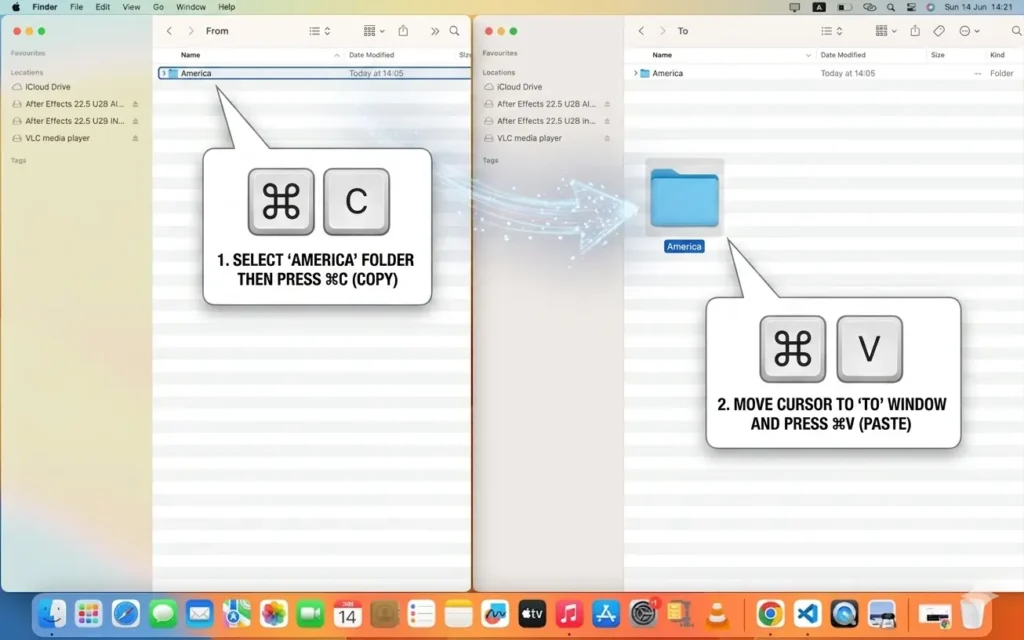
The fastest way to copy and paste on Mac is by using keyboard shortcuts.
Step 1
First, select the text, file, image, or item you want to copy.
Step 2
Next, press:
Command (⌘) + C
This copies the selected item to the clipboard.
Step 3
Then, move to the location where you want to paste the content.
Step 4
Finally, press:
Command (⌘) + V
As a result, the copied content appears in the new location. Moreover, keyboard shortcuts are usually faster than using menus. Consequently, many Mac users rely on them every day.
How to Copy and Paste on Mac Using the Right-Click Menu
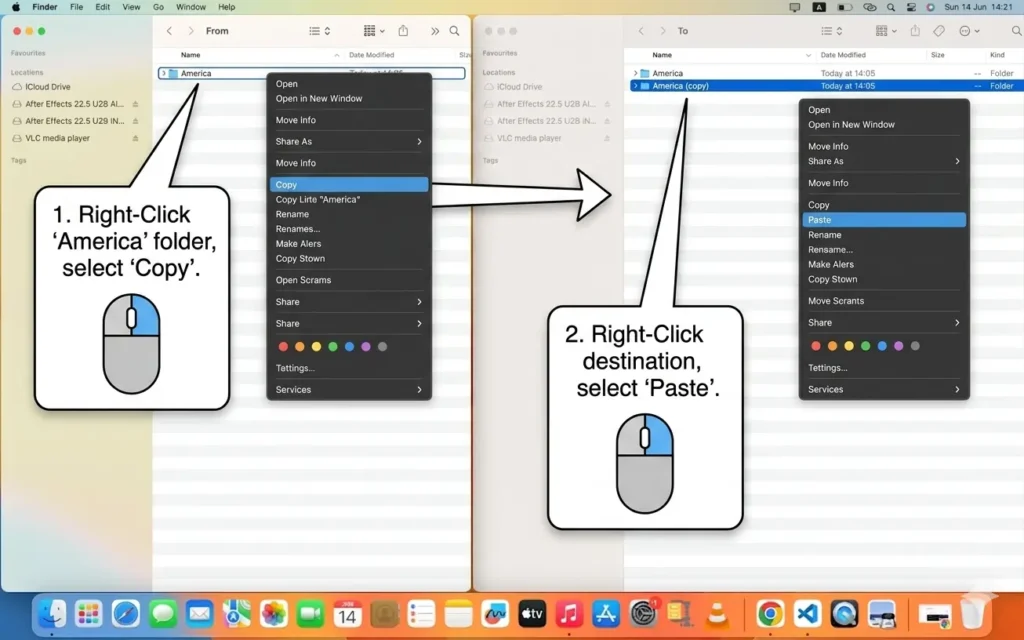
Alternatively, you can use the mouse or trackpad.
Step 1
First, select the content you want to copy.
Step 2
Next, right-click the selected item.
Step 3
Then, click Copy.
Step 4
Afterward, navigate to the destination.
Step 5
Finally, right-click again and select Paste.
Consequently, the copied content is inserted into the new location. Meanwhile, the right-click method is helpful for users who prefer using a mouse or trackpad.
How to Copy and Paste Files on Mac
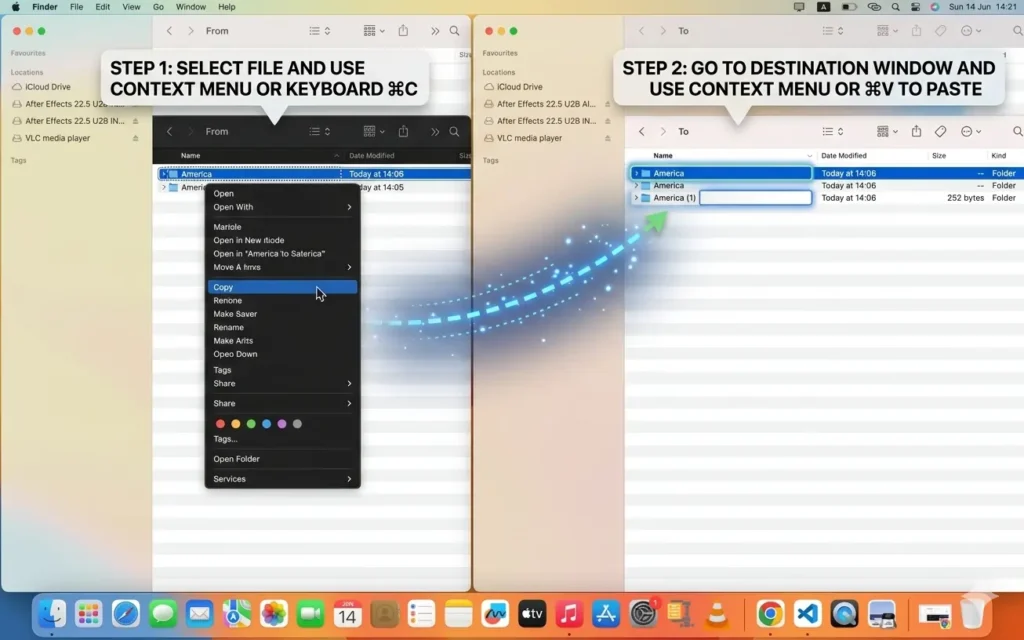
Copying files on Mac works similarly to copying text.
Step 1
First, select the file or folder.
Step 2
Next, press:
Command (⌘) + C
Step 3
Then, open the destination folder.
Step 4
Finally, press:
Command (⌘) + V
As a result, macOS creates a copy of the file in the new location. Furthermore, this method works for both files and folders. Therefore, it is useful when organizing documents and media.
How to Cut and Paste on Mac
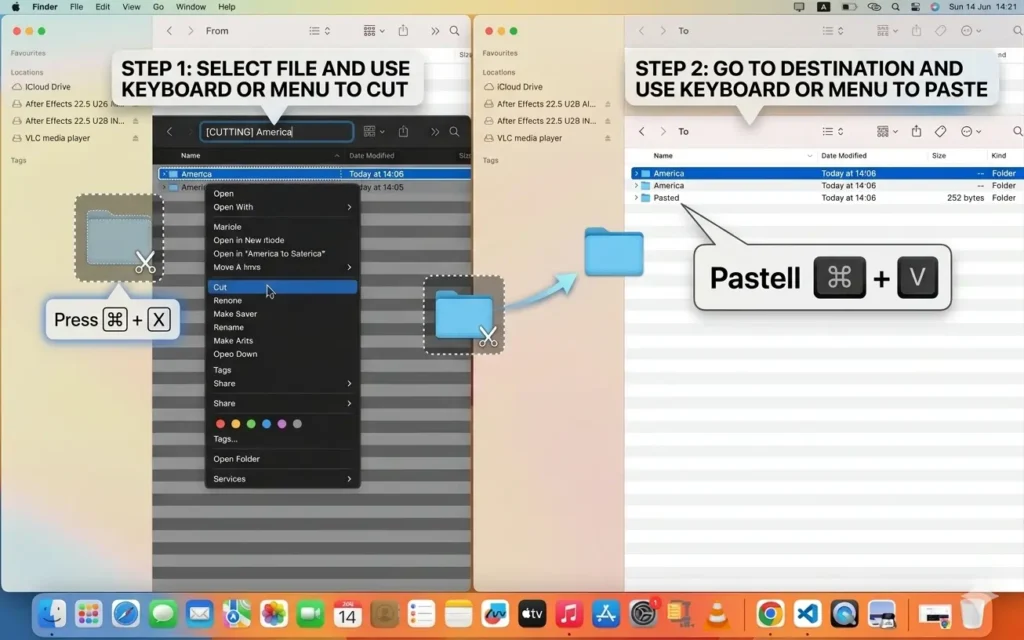
Unlike Windows, Mac doesn’t use a traditional cut command for files. However, you can move files using a special shortcut.
Step 1
First, copy the file using:
Command (⌘) + C
Step 2
Next, open the destination folder.
Step 3
Then, press:
Option + Command (⌘) + V
Consequently, the file is moved instead of copied.
How to Paste Without Formatting on Mac
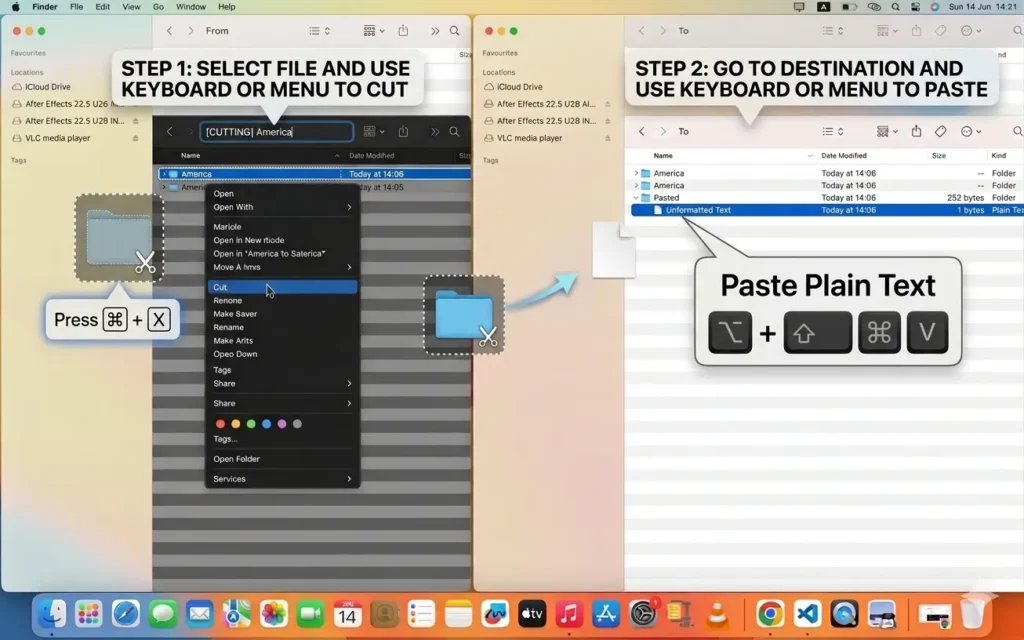
Sometimes copied text includes unwanted fonts, colors, or formatting.
Step 1
First, copy the text normally.
Step 2
Next, move to the destination.
Step 3
Then, press:
Option + Shift + Command (⌘) + V
As a result, the text is pasted using the destination’s formatting instead of the original formatting. In addition, removing formatting helps maintain a consistent document style. Consequently, pasted text blends seamlessly with existing content.
Common Copy and Paste Problems on Mac
Fortunately, most copy-and-paste issues are easy to fix. Therefore, a few simple troubleshooting steps often solve the problem.
Copy and Paste Not Working
First, restart the application you’re using.
Next, try copying a different item.
Finally, restart your Mac if the problem continues.
Clipboard Not Updating
Sometimes the clipboard becomes stuck.
First, close unnecessary applications.
Then, try copying new content again.
Additionally, restarting Finder may solve the issue.
Keyboard Shortcuts Not Working
First, verify your keyboard settings.
Next, check for software conflicts.
Furthermore, ensure the Command key is functioning properly.
Tips for Using Copy and Paste on Mac
To improve productivity:
- Learn the keyboard shortcuts.
- Use paste without formatting when needed.
- Organize files before moving them.
- Double-check file destinations.
- Use Finder shortcuts to work faster.
Additionally, keyboard shortcuts are usually faster than menu commands. Furthermore, practicing them regularly helps build muscle memory. Moreover, using consistent workflows can reduce mistakes when managing files.
Frequently Asked Questions About Copy and Paste on Mac
What is the copy shortcut on Mac?
Simply press Command (⌘) + C. As a result, the selected content is copied to the clipboard.
What is the paste shortcut on Mac?
Press Command (⌘) + V. Then, the copied content appears in the selected location.
How do I move files instead of copying them?
First, copy the file. Then, press Option + Command (⌘) + V in the destination folder.
Can I paste without formatting on Mac?
Yes. Specifically, press Option + Shift + Command (⌘) + V in supported applications.
Why is copy and paste not working on my Mac?
Typically, the issue is caused by an application problem, clipboard error, or keyboard shortcut conflict. However, restarting the application or Mac usually resolves the issue.
Conclusion
Now you know how to copy and paste on Mac using keyboard shortcuts, menu options, and file management tools. First, you can copy content using Command + C. Next, you can paste it using Command + V. Additionally, you can move files and paste text without formatting whenever needed.
Furthermore, macOS continues to support these shortcuts across updates. Therefore, the methods in this guide remain useful for most Mac users. Meanwhile, learning these shortcuts can significantly improve your workflow.
As a result, you’ll be able to work more efficiently across applications and folders. Ultimately, mastering how to copy and paste on Mac is one of the easiest ways to improve productivity on macOS.
Related Mac Tutorials
After learning how to copy and paste on Mac, you may find these guides helpful for improving your productivity and managing files more efficiently:
- How to Find Downloaded Files on Mac – Locate files before copying, moving, or organizing them.
- How to Take a Screenshot on Mac – Capture screenshots and then copy or share them quickly.
- How to Record Screen on Mac – Learn how to save and manage screen recordings on your Mac.
- How to Force Quit Apps on Mac – Fix unresponsive applications that may interfere with copying and pasting.