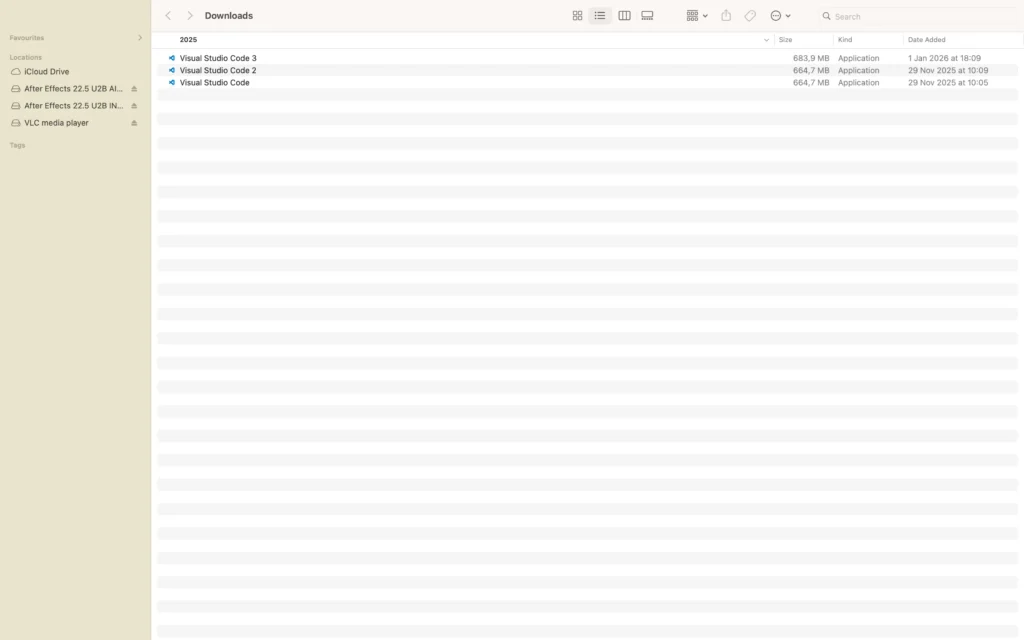
How to find downloaded files on Mac is a common question among new and experienced Mac users. After downloading documents, images, videos, applications, or other files, it can sometimes be difficult to know exactly where they were saved. Fortunately, macOS provides several built-in tools that help you locate downloads quickly and easily.
In this tutorial, you’ll learn how to find downloaded files on Mac using the Downloads folder, Finder, Spotlight Search, and web browsers. Additionally, you’ll discover how to change download locations and organize downloaded files more effectively. Furthermore, downloaded files can come from many different sources. Therefore, knowing where to look can save a significant amount of time.
What Are Downloaded Files on Mac?
Downloaded files are files that have been saved to your Mac from the internet, email attachments, cloud storage services, or other applications.
For example, downloaded files may include:
- PDF documents
- Images
- Videos
- ZIP archives
- Applications
- Audio files
Because downloads can come from many different sources, knowing where macOS stores them can save time and reduce frustration. Additionally, downloaded files are often stored automatically in default locations. As a result, they are usually easy to locate.
How to Find Downloaded Files on Mac Using the Downloads Folder
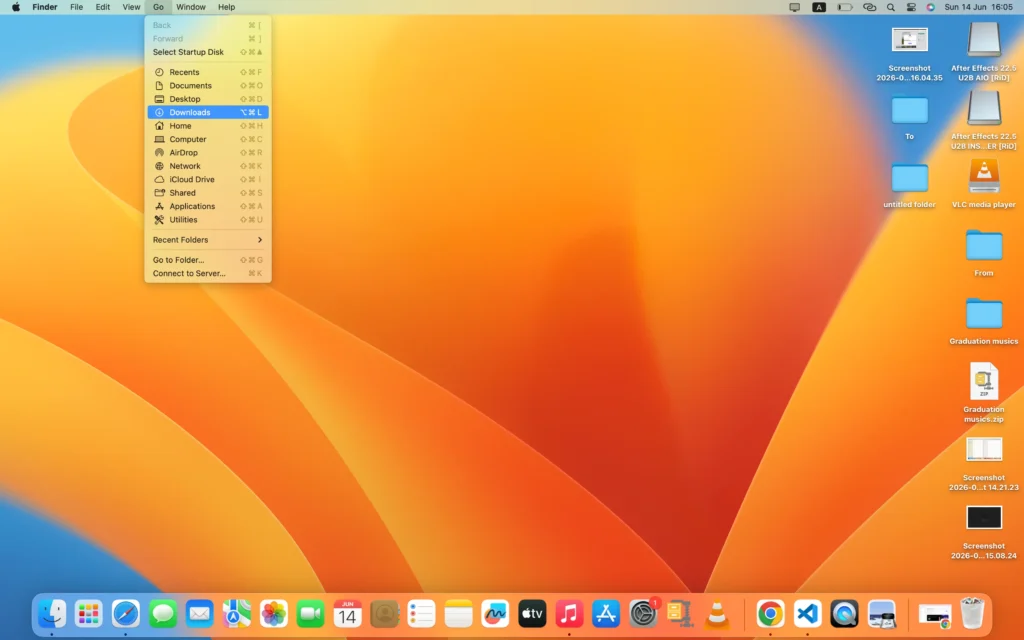
The Downloads folder is the most common location for downloaded files.
Step 1
First, From top ribbon Click ( Go ).
Step 2
Next, look for Downloads in the dropdown options.
Step 3
Then, click the Downloads folder.
Step 4
Finally, browse the files stored inside.
As a result, you’ll usually find recently downloaded files immediately. Moreover, the Downloads folder is the first place most users should check. Consequently, it is often the quickest solution.
How to Find Downloaded Files on Mac Using Finder
Alternatively, you can search for files directly in Finder.
Step 1
First, open Finder by Command + spacebar buttons and search for Finder, click it.
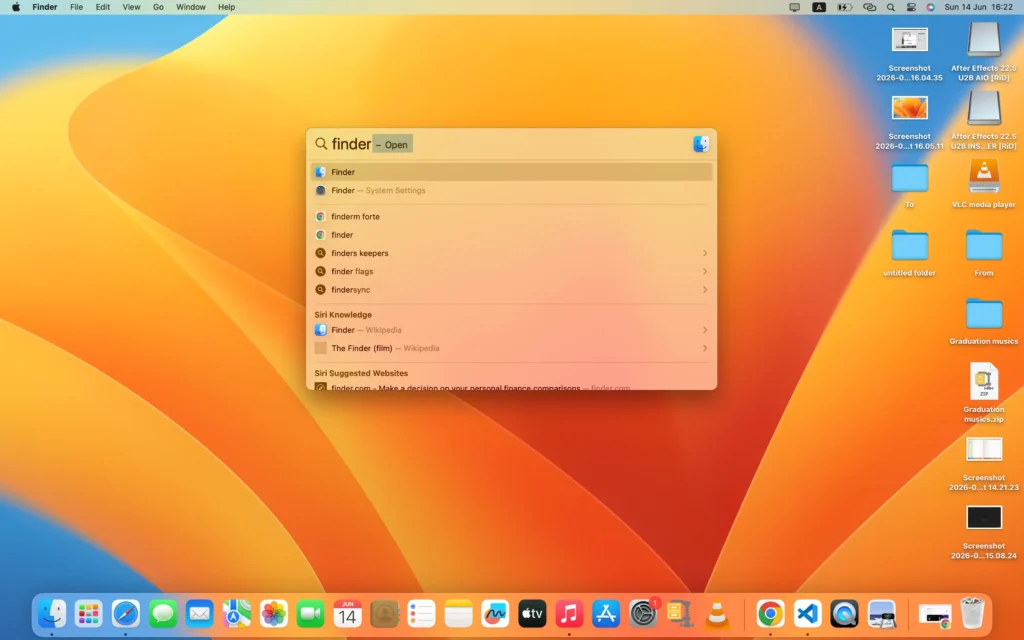
Step 2
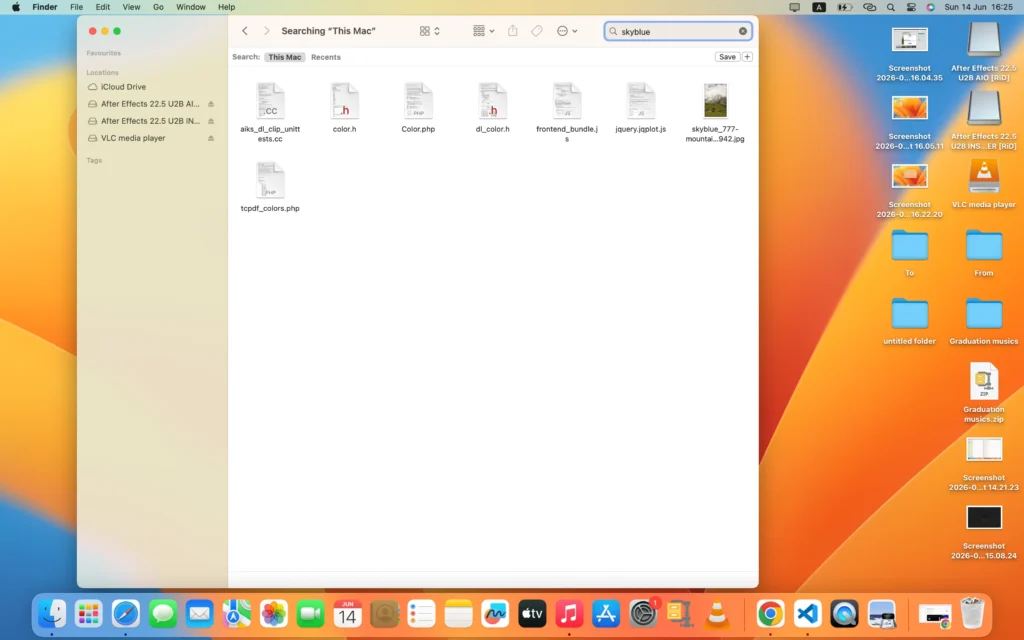
Next, click the search bar in the upper-right corner.
Step 3
Then, enter the file name or part of the file name.
Step 4
Finally, review the search results.
Consequently, Finder can locate files even if they were moved from the Downloads folder. Meanwhile, Finder Search is useful when a file has been moved to another folder.
How to Find Downloads in Safari

If you use Safari, downloaded files can be accessed directly through the browser.
Step 1
Open Safari.
Step 2
Next, click the Downloads icon near the top-right corner.
Step 3
Then, select the file you want to open.
Consequently, Safari provides quick access to recent downloads. In addition, Safari keeps a list of recent downloads for easy access.
How to Find Downloads in Google Chrome
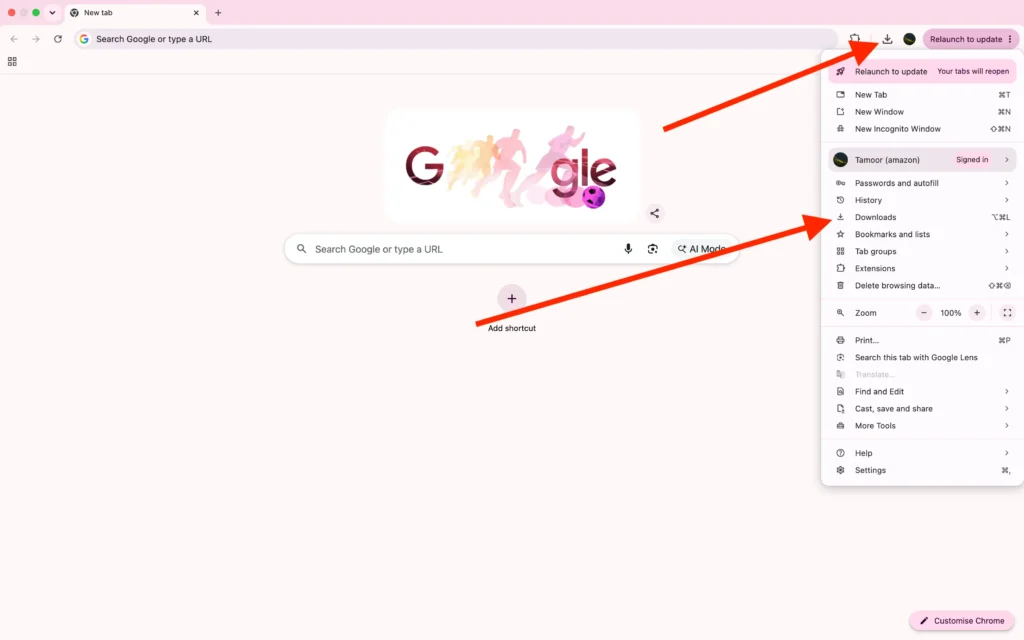
Similarly, Chrome keeps a record of downloaded files.
Step 1
Open Chrome.
Step 2
Press:
Command (⌘) + Shift + J
Step 3
Next, review your recent downloads.
Step 4
Finally, click Show in Finder if needed.
As a result, you can quickly locate downloaded files from Chrome. Furthermore, Chrome’s download history makes finding recent files much easier.
How to Change the Download Location on Mac
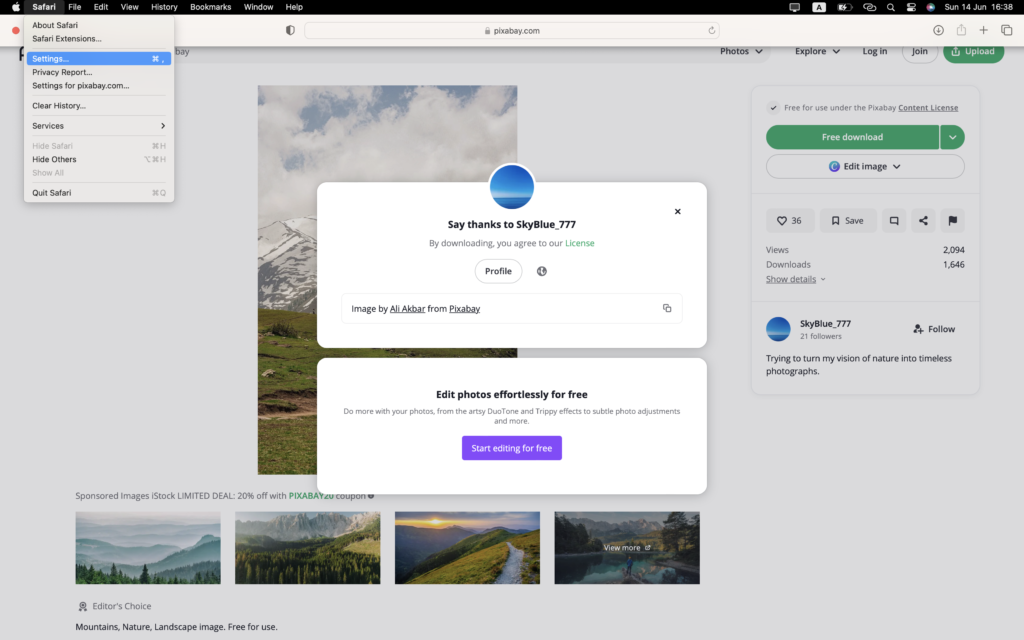
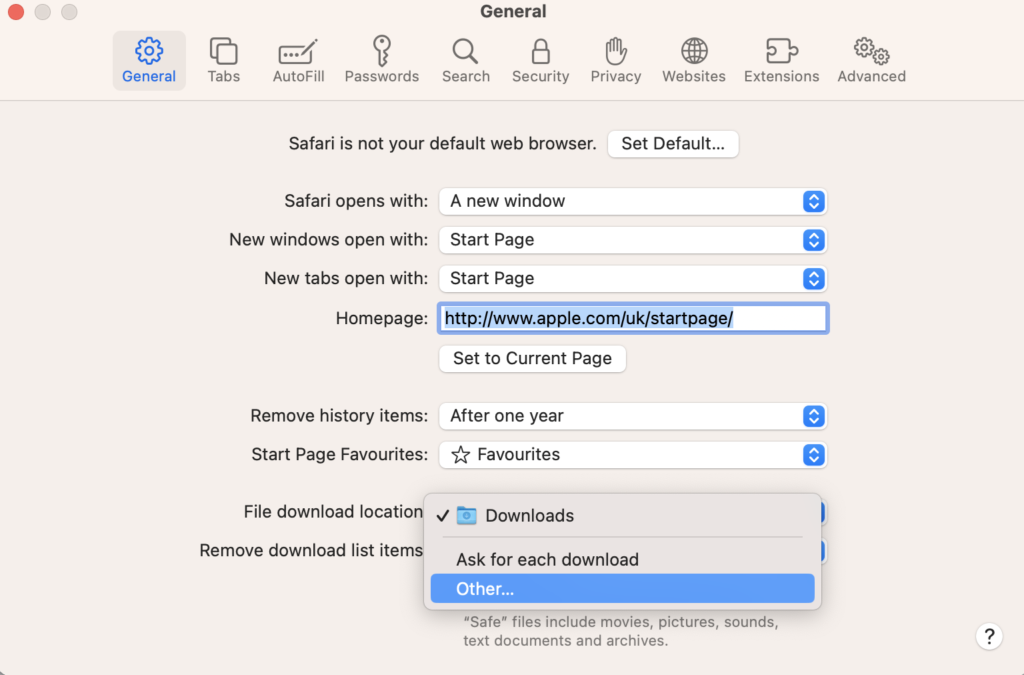
By default, most downloads are saved to the Downloads folder. However, you can change the location.
Safari
- Open Safari Settings.
- Click General.
- Change File Download Location.
Chrome
- Open Chrome Settings.
- Select Downloads.
- Choose a new download folder.
Therefore, future downloads will be saved to the new location. As a result, you can save downloads directly to the folders you use most often.
What to Do If You Can’t Find Downloaded Files on Mac
Fortunately, missing downloads can usually be found using one of the methods above.
Check the Downloads Folder
First, open the Downloads folder.
Use Spotlight Search
Next, search using the file name.
Check the Browser Download History
Then, review recent downloads in your browser.
Search by File Type
For example, search for:
- JPG
- PNG
- ZIP
- MP4
Consequently, you can often locate files even if you’ve forgotten their names.
Tips for Organizing Downloaded Files on Mac
To keep downloads organized:
- Delete unnecessary files regularly.
- Create folders for different file types.
- Rename important files.
- Sort files by date.
- Move files out of Downloads after use.
Additionally, organized downloads make files easier to find later. Furthermore, reducing clutter improves productivity. Moreover, a well-organized Downloads folder reduces confusion. Consequently, important files are easier to locate when you need them.
Frequently Asked Questions About How to Find Downloaded Files on Mac
Where do downloaded files go on Mac?
By default, downloaded files are usually stored in the Downloads folder.
How do I open the Downloads folder?
Open Finder and click Downloads in the sidebar.
Can I search for downloaded files?
Yes. Use Finder Search or Spotlight Search.
How do I find downloads in Chrome?
Press Command + Shift + J in Chrome.
Can I change where downloads are saved?
Yes. Most browsers allow you to choose a custom download location.
Conclusion
Now you know how to find downloaded files on Mac using several different methods. First, you can check the Downloads folder. Alternatively, you can use Finder Search or Spotlight Search. Furthermore, web browsers provide direct access to recent downloads.
In addition, changing your download location and organizing files can make future searches much easier. Furthermore, macOS provides several built-in tools for locating downloads. Therefore, you rarely need third-party software to find missing files.
As a result, you’ll spend less time searching for files and more time using them effectively. Ultimately, learning how to find downloaded files on Mac helps you stay organized and work more efficiently.
Related Mac Tutorials
After finding your downloaded files, you may also find these Mac guides useful:
- How to Copy and Paste on Mac – Move and organize downloaded files quickly.
- How to Take a Screenshot on Mac – Capture images and save them to your Mac.
- How to Record Screen on Mac – Learn where screen recordings are saved and how to manage them.
- How to Force Quit Apps on Mac – Fix frozen apps that may interrupt downloads.