Google Authenticator adds a powerful layer of security to your online accounts by generating time-based codes that only you can access. This guide walks you through everything from installation to daily use.
What Is Google Authenticator and Why Use It?
Google Authenticator is a free mobile app that generates 6-digit verification codes for two-factor authentication (2FA) . When you enable 2FA on services like Google, Facebook, or your banking app, you’ll need both your password AND a code from this app to log in .
Why it matters: Even if someone steals your password, they can’t access your account without the constantly changing code on your phone . Authenticator apps are far more secure than SMS codes, which can be intercepted through SIM swapping attacks .
Key benefits:
Codes work offline—no internet or cell service required
Each code expires after 30 seconds and can only be used once
One app can store dozens of accounts, keeping everything organized
Installing Google Authenticator
On Android
Open the Google Play Store
Search for “Google Authenticator” (published by Google LLC)
Tap Install and open the app when finished
On iPhone
Open the Apple App Store
Search for “Google Authenticator”
Tap Get then Install
How to Set Up Google Authenticator Step by Step
You’ll need both your phone and a computer (or the website where you’re enabling 2FA) for this process.
Step 1: Access the Service’s 2FA Setup
Log into the website or service you want to secure
Navigate to Security Settings or Two-Factor Authentication
Look for options like “Set up authenticator app” or “Enable 2FA”
Step 2: Choose Your Setup Method
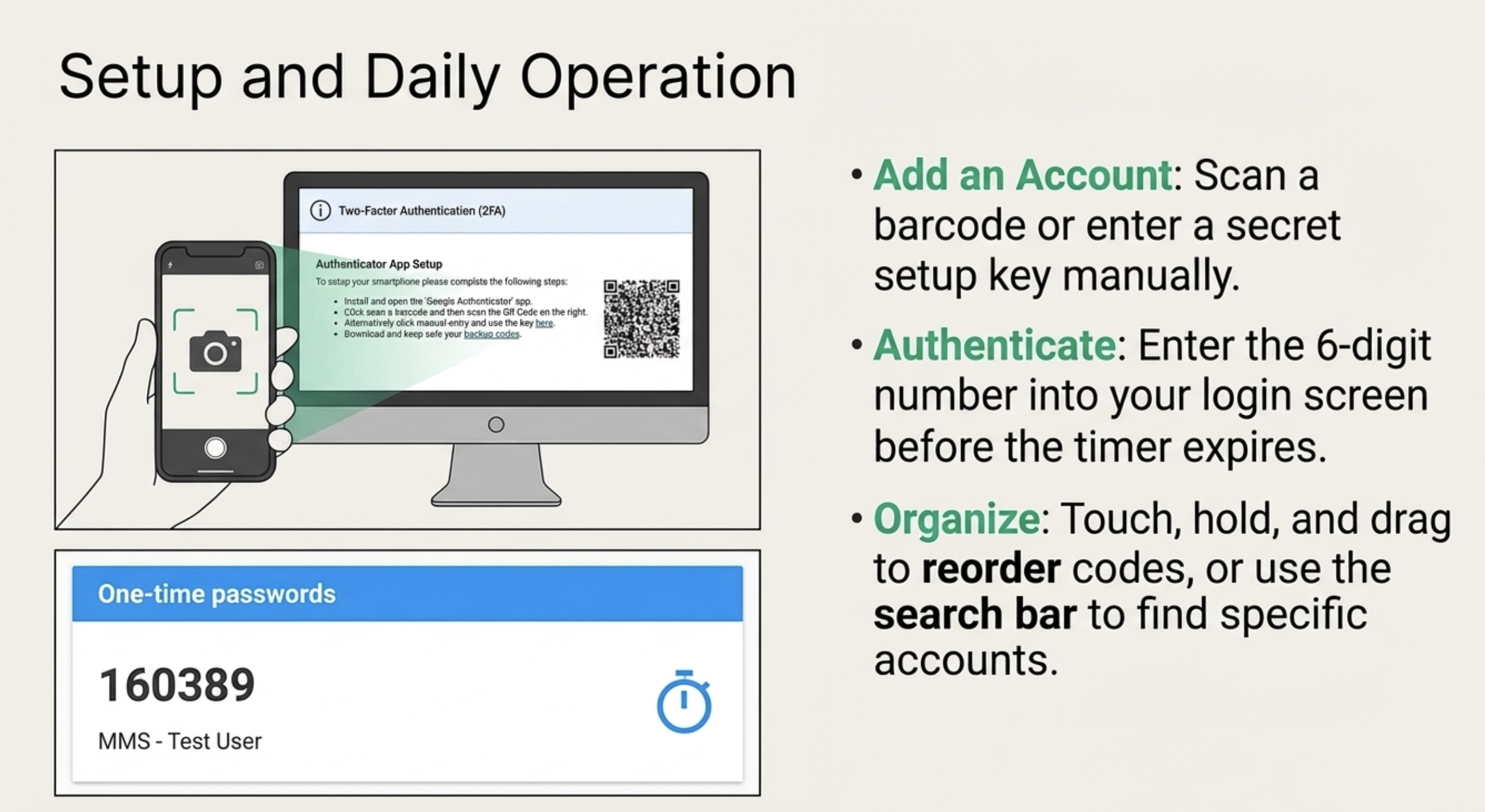
Method A: Scan QR Code (Easiest)
On your phone, open Google Authenticator and tap the + (plus) button
Select Scan a QR code
Allow camera access when prompted
Point your phone at the QR code displayed on your computer screen
The app will automatically add the account
Method B: Enter Setup Key Manually If you can’t scan the QR code:
On the website, click the “Can’t scan” or “Manual entry” link to reveal a secret key
In Google Authenticator, tap + → Enter a setup key
Type an account name (like “Gmail”) and paste the secret key
Tap Add
Step 3: Verify the Setup
Google Authenticator will now display a 6-digit code for your account
Enter this code into the website’s verification field
Click Verify or Confirm
If successful, 2FA is now enabled for your account
⚠️ Important: You typically have only one chance to scan the QR code. Don’t close the browser window until you’ve successfully added the account .
Using Google Authenticator to Log In
Once your accounts are set up, here’s how to use them:
Visit the website or app and enter your username and password as usual
When prompted for a verification code, open Google Authenticator on your phone
Find the matching account name and read the 6-digit code
Type that code into the login field
Pro tips:
Codes refresh every 30 seconds—you’ll see a countdown timer
If a code expires while you’re typing, wait a few seconds for the new one
Each code works only once, so always use the current one
Double-check you’re using the code for the correct account if you have many
Important Security Tips
Back Up Your Codes
Save your backup codes (provided when you set up 2FA) in a secure place like a password manager
Consider signing into Google Authenticator with your Google account to enable cloud sync—this makes recovery easier if you lose your phone
Protect Your Phone
Configure a lock screen (PIN, pattern, or fingerprint) on your device
Never share your verification codes with anyone—legitimate support staff will never ask for them
What If You Lose Your Phone?
Use backup codes to regain access to your accounts
If you enabled cloud sync, simply reinstall the app and sign in with your Google account
Contact the support team for each service—they can help verify your identity and reset 2FA
Troubleshooting Common Issues
“The code isn’t working”
This is usually a time sync issue. Fix it by:
On Android: Go to Authenticator settings → Time correction for codes → Sync now
On iPhone: Ensure Settings → General → Date & Time is set to Set Automatically
After syncing, the codes should work properly
“The QR code won’t scan”
Clean your phone’s camera lens
Increase brightness on your computer screen
Try the manual entry method instead
“I lost my phone”
Immediately use backup codes to log into critical accounts
Contact each service’s support to disable 2FA and re-enable it on your new device
Quick Reference Card
Task
Action
Install app
App Store (iPhone) or Google Play Store (Android)
Add new account
Tap + → Scan QR code or Enter setup key
Get login code
Open app → Find account → Read 6-digit number
Code duration
30 seconds, then automatically refreshes
Back up
Save backup codes + enable Google account sync
Final Checklist
✅ Downloaded Google Authenticator app ✅ Enabled 2FA on important accounts ✅ Saved backup codes in a secure place ✅ Tested login with authenticator codes ✅ Enabled phone lock screen ✅ Considered enabling cloud sync
Final Verdict
Google Authenticator transforms your phone into a powerful security key that protects your most important accounts. The setup takes just minutes per account, and the peace of mind is invaluable.
Start with your most critical accounts—email, banking, social media—and gradually add others. Once you experience the extra layer of security, you’ll wonder why you didn’t start sooner.