Google’s location tracking can feel intrusive, but you have full control to turn it off. Here’s your complete guide on how to turn off Google location history across all your devices, plus how to delete past data and ensure tracking stays off.
Quick Overview: What You’ll Learn
| Topic | What It Covers |
|---|---|
| Turn off Location History | Stop future location tracking |
| Delete past history | Remove existing location data |
| Web & App Activity | The second tracking setting you must disable |
| Auto-delete options | Automatically remove old data |
| Recent changes | Google’s Timeline storage update |
Why Location History Matters
Location History is a Google Account setting that creates your Timeline—a personal map showing places you’ve been, routes you’ve taken, and trips you’ve completed . When enabled, your precise device location is regularly saved to both your devices and Google’s servers, even when you’re not actively using Google apps .
The good news: Location History is off by default for new Google Accounts . If you’ve previously turned it on, you can disable it anytime.
How to Turn Off Location History
On iPhone
Step 1: Open the Google app on your iPhone .
Step 2: Tap your profile photo or initial in the top-right corner, then select Manage your Google Account .
Step 3: At the top, tap Data & privacy .
Step 4: Scroll down to “History settings” and tap Timeline (formerly called Location History) .
Step 5: Turn the toggle off . Confirm by tapping Pause then Okay .
On Android
Step 1: Go to the Location History section of your Google Account (you can search “Location History” or visit directly) .
Step 2: At the top, you’ll see an option for “Your account and all devices” . Turn the toggle off .
Step 3: You can also control individual devices by scrolling to “This device” or “Devices on this account” and toggling specific devices off .
On Computer (Any Browser)
Step 1: Sign in to your Google Account and go to Activity controls .
Step 2: Find Location History (or Timeline) and click Turn off .
Step 3: Google will show a pop-up explaining the effects. Click Pause to confirm .
Important: What Happens When You Turn It Off
When Location History is turned off, your device stops saving its location to your Timeline . However:
- Previous activity is not automatically deleted . You must manually delete past data.
- Your settings for other location services remain unchanged .
- Location data may still be saved through Web & App Activity (see next section) .
The Hidden Setting: Web & App Activity
Many people don’t realize that turning off Location History isn’t enough. Google also tracks location through Web & App Activity, which saves data from your use of Google sites, apps, and services—including your IP address and general location .
How to Turn Off Web & App Activity
Step 1: Go to your Google Account’s Activity controls page .
Step 2: Find Web & App Activity and click Turn off .
Step 3: A pop-up will warn about reduced personalization. Click Pause to confirm .
Step 4: After pausing, you’ll be offered the option to delete old activity. Click “Delete old activity” and choose your preferred time range .
Why this matters: Even with Location History off, Web & App Activity can continue collecting location information from your IP address and general device area . Disabling both gives you true privacy.
How to Delete Existing Location History
Delete All Location History on iPhone
- Open Google Maps .
- Tap your profile picture → Your timeline .
- Tap More (three dots) → Settings .
- Under “Location settings,” tap Delete all Timeline data .
- Follow on-screen instructions .
Delete All Location History on Android
- Open Google Maps .
- Tap your profile picture → Your timeline .
- Tap More → Settings and privacy .
- Under “Location settings,” tap Delete all Location History .
- Follow on-screen instructions .
Delete All Location History on Computer
- In your browser, go to Google Maps Timeline .
- Click Delete (trash can icon) .
- Follow on-screen instructions .
Delete a Specific Day
On iPhone/Android:
- Open Google Maps → Your timeline → Show calendar .
- Select the day you want to delete .
- Tap More → Delete the day (or Delete day) .
- Follow instructions .
On Computer:
Delete a Specific Stop
- Open Google Maps → Your timeline → Show calendar → select the day .
- Tap the stop you want to delete → Delete .
- Follow instructions .
Set Up Automatic Deletion
You can configure Google to automatically delete your Location History after a set period .
On iPhone
- Open Google Maps → Your timeline → More → Settings .
- Under “Location settings,” tap Automatically delete Timeline data .
- Choose 3 months, 18 months, or 36 months .
- Follow instructions .
On Android
- Open Google Maps → Your timeline → More → Settings and privacy .
- Scroll to “Location settings” → Automatically delete Location History .
- Choose your preferred time period .
- Follow instructions .
On Computer
- Go to Google Maps Timeline .
- Click Settings (gear icon) → Automatically delete Location History .
- Choose your time period and confirm .
Important: Google’s Recent Timeline Changes
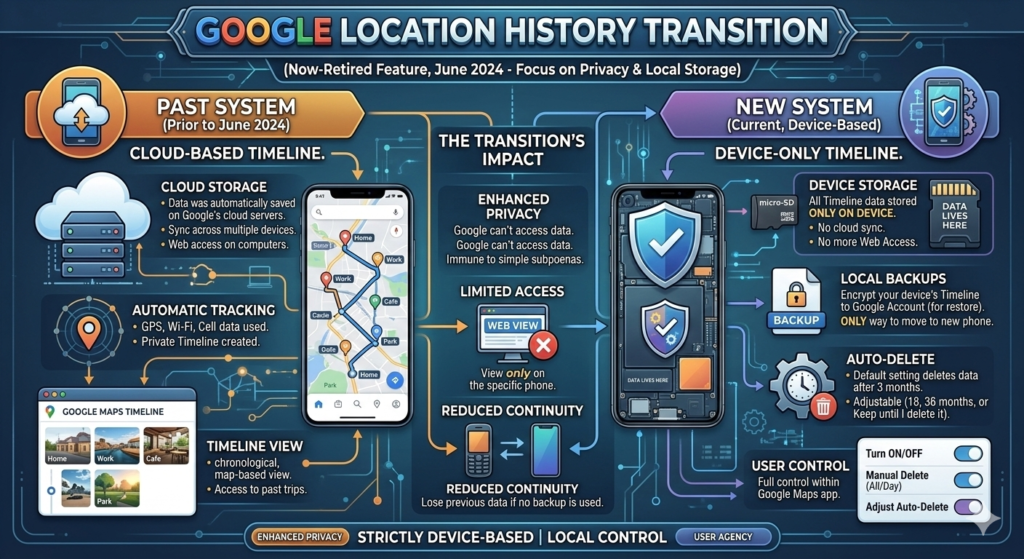
Google is migrating Timeline data from cloud storage to on-device storage . This change affects how your location history is saved:
- Deletion deadline: Users received email notifications with deadlines (typically 6 months from notification) to update settings or risk losing older data .
- Default retention: After the change, only the most recent 3 months of Timeline history are saved to your device .
- Permanent deletion: Data not migrated is permanently deleted and cannot be recovered .
If you want to keep your old Timeline data, you must update your settings before your deadline. Otherwise, it will be automatically deleted .
Troubleshooting Common Issues
“The setting keeps turning back on”
Some users report Location History reactivating after updates . Check your settings periodically, especially after:
- Major iOS or Android updates
- Google app updates
- Switching devices
“I can’t find the setting”
Timeline may not be available if :
- It’s not available in your country or region
- You don’t meet age restrictions
- You use a work or school account (your administrator controls availability)
- Location Services or Background App Refresh are turned off
“Do I lose anything by turning this off?”
Yes, you’ll lose personalized experiences like :
- Recommendations based on places you visit
- Real-time traffic estimates for your commute
- Personalized routes in Google Maps
- More relevant survey invitations from Google Opinion Rewards
Quick Decision Guide
| Your Goal | Action |
|---|---|
| Stop future tracking | Turn off Location History + Web & App Activity |
| Remove all past data | Delete all Location History |
| Keep some privacy but maintain features | Set auto-delete to 3 months |
| Maximum privacy | Turn off both settings + delete all history |
| Keep old Timeline data | Update settings before deadline |
Final Checklist
✅ Turned off Location History
✅ Turned off Web & App Activity
✅ Deleted existing location history
✅ Set up auto-deletion (optional)
✅ Checked Timeline migration deadline
✅ Verified settings after device updates
Final Verdict
Turning off Google location history is straightforward once you know where to look. The key is understanding that Location History and Web & App Activity are separate settings—you must disable both for complete privacy .
After disabling tracking, take a few extra minutes to delete your past data and set up auto-deletion to prevent future accumulation. Check your settings occasionally, as updates can sometimes revert them .
Your movements are your own business. With these steps, you can use Google’s services while keeping your location private.