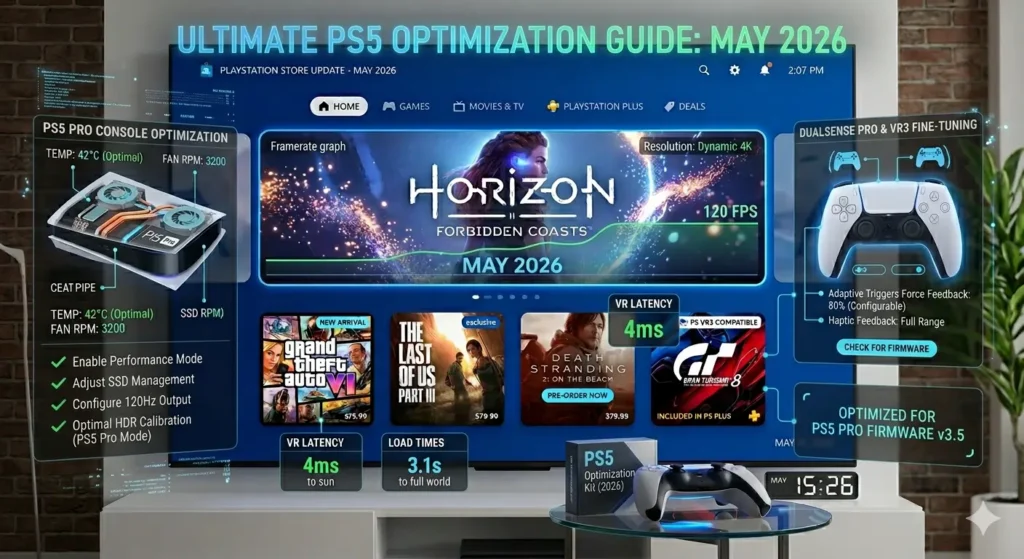
This PS5 optimization guide will help you get the best possible performance from your PlayStation 5. Whether you play competitive shooters, sports games, racing titles, or massive open-world adventures, proper optimization can make a noticeable difference.
Moreover, even though the PS5 is a powerful console, default settings are not always ideal. As a result, many players miss out on smoother frame rates, lower input lag, and better overall responsiveness.
Fortunately, a few simple adjustments can dramatically improve your experience. In this PS5 optimization guide, you’ll learn how to enable VRR, activate 120Hz output, reduce controller latency, expand storage, and keep your system running efficiently.
Furthermore, every PS5 owner can benefit from these settings regardless of the games they play. In addition, most adjustments take only a few minutes to apply. Therefore, optimizing your console is one of the easiest ways to improve performance.
For broader optimization tips across all gaming platforms, check out our Gaming Performance Guide.
PS5 Optimization Guide: Enable Variable Refresh Rate (VRR)
Variable Refresh Rate, or VRR, is one of the most important PS5 settings.
When enabled, VRR synchronizes your display’s refresh rate with the game’s frame rate. As a result, screen tearing is reduced and gameplay feels much smoother.
Furthermore, VRR helps eliminate frame pacing issues in supported games. Consequently, motion appears more fluid during fast-paced gameplay.
Moreover, many modern games are specifically designed to take advantage of VRR technology. Consequently, supported titles often feel smoother during intense gameplay sequences.
How to Enable VRR
- Open Settings.
- Select Screen and Video.
- Choose Video Output.
- Set VRR to Automatic.
However, VRR requires an HDMI 2.1 compatible display. If your display does not support VRR, you should enable 120Hz output and Performance Mode instead.
PS5 Optimization Guide: Activate Auto Low Latency Mode (ALLM)
Auto Low Latency Mode automatically switches compatible displays into Game Mode.
Consequently, controller actions appear on-screen more quickly. In addition, overall responsiveness improves significantly.
Likewise, reducing input lag can improve reaction times in competitive games. Therefore, enabling ALLM should be one of your first optimization steps.
Enable ALLM
- Go to Settings.
- Select Screen and Video.
- Open Video Output.
- Set ALLM to Automatic.
If your television does not support ALLM, manually activate Game Mode through your TV settings.
For additional latency-reduction tips, see our Gaming Performance Guide.
PS5 Optimization Guide: Enable 120Hz Output
Many modern PS5 games support 120 FPS.
However, this feature must be enabled manually before compatible games can use it.
Enable 120Hz
- Open Settings.
- Select Screen and Video.
- Choose Video Output.
- Set 120Hz Output to Automatic.
Once enabled, supported games can run at higher frame rates. Moreover, fast-paced shooters and racing games become noticeably smoother.
Combined with VRR, 120Hz output delivers one of the biggest performance upgrades available on PS5.
Furthermore, higher refresh rates are especially beneficial in shooters and racing games. As a result, player inputs feel more immediate and responsive.
PS5 Optimization Guide: Use Performance Mode
The PS5 offers two primary presets:
- Performance Mode
- Resolution Mode
Performance Mode prioritizes frame rate. Therefore, it remains the recommended choice for most players.
Meanwhile, Resolution Mode prioritizes visual quality. Although games may look sharper, frame rates can sometimes be lower.
In contrast, Resolution Mode focuses primarily on image quality. Nevertheless, most players prefer higher frame rates during actual gameplay.
Enable Performance Mode
- Open Settings.
- Select Saved Data and Game/App Settings.
- Open Game Presets.
- Select Performance Mode.
As a result, supported games will automatically favor higher FPS.
PS5 Optimization Guide: Optimize Your TV or Monitor
Even perfect console settings cannot compensate for a poorly configured display.
Therefore, optimizing your television or monitor is essential.
Recommended Display Settings
| Setting | Recommended Value |
|---|---|
| Game Mode | Enabled |
| HDMI Format | Enhanced |
| VRR | Enabled |
| HDR | Calibrated |
| RGB Range | Limited (Most TVs) |
| 120Hz Support | Enabled |
Additionally, ensure your HDMI cable supports high-bandwidth features. Likewise, use the HDMI cable included with your PS5 whenever possible.
As a result, you’ll unlock the console’s full visual capabilities.
Additionally, display settings often have a larger impact than players expect. Therefore, reviewing these options carefully is highly recommended.
PS5 Optimization Guide: Expand Storage with an M.2 SSD
Modern games continue to grow in size.
As a result, PS5 storage can fill up surprisingly quickly.
Fortunately, Sony allows users to install a compatible M.2 SSD.
SSD Requirements
- PCIe Gen4 NVMe SSD
- Minimum 5,500 MB/s read speed
- M.2 2280 format
- Compatible heatsink
Benefits of SSD Expansion
- More storage space
- Fast loading times
- Direct PS5 game installation
- Improved library management
Furthermore, expanded storage performs similarly to the internal SSD.
Therefore, it remains one of the best upgrades available.
Meanwhile, larger game libraries continue to push storage requirements higher every year. Consequently, SSD upgrades have become increasingly popular among PS5 owners.
PS5 Optimization Guide: Improve PS4 Games with Game Boost
One of the PS5’s best hidden features is Game Boost.
Game Boost automatically improves performance in many backward-compatible PS4 games.
Consequently, frame rates become more stable. In addition, loading times are often reduced.
Furthermore, many older games receive performance improvements automatically. As a result, players can revisit classic titles with a much smoother experience.
Enable Enhanced PS4 Game Features
- Open Settings.
- Select Screen and Video.
- Choose Video Output.
- Enable Enhance Image Quality for PS4 Games.
As a result, many older games look and perform significantly better.
PS5 Optimization Guide: Reduce Controller Input Lag
Controller responsiveness can affect gameplay dramatically.
For this reason, optimizing your DualSense settings is worthwhile.
Lower Input Lag
- Open Settings.
- Select Accessories.
- Choose Controller.
- Set Communication Method to USB Cable.
Additionally, wired connections provide the most consistent performance.
Meanwhile, disabling strong trigger effects can improve responsiveness for some players.
Similarly, small controller adjustments can create noticeable improvements during long gaming sessions. Therefore, experimenting with different settings is worthwhile.
Save Battery Life
- Lower controller brightness.
- Reduce trigger intensity.
- Enable controller auto-off timers.
Consequently, you’ll enjoy longer gaming sessions between charges.
For more on reaction speed, try our CPS Test Tool.
PS5 Optimization Guide: Prevent Overheating
Overheating can reduce performance and system stability.
Therefore, keeping your PS5 cool should be a priority.
Cooling Best Practices
- Keep at least four inches of clearance around the console.
- Avoid enclosed cabinets.
- Clean vents every few months.
- Keep software updated.
- Use the official stand.
First, ensure proper airflow. Next, remove dust regularly. Finally, monitor operating temperatures during extended gaming sessions.
As a result, your PS5 can maintain peak performance more consistently.
Moreover, consistent cooling helps maintain stable performance over time. Consequently, proper airflow should never be overlooked.
PS5 Optimization Guide: Install System Software Updates
Sony regularly releases system updates.
Not only do these updates add features, but they also improve performance and stability.
Furthermore, updates often resolve bugs that affect gameplay.
Likewise, software updates frequently include hidden performance improvements. Therefore, installing updates promptly remains a good habit.
Check for Updates
- Open Settings.
- Select System.
- Choose System Software.
- Select Update System Software.
Therefore, keeping your console updated should always be part of your optimization routine.
PS5 Optimization Guide: Troubleshoot Common Problems
Even well-maintained systems can experience occasional issues.
However, most problems have simple solutions.
| Problem | Solution |
|---|---|
| Random Shutdowns | Improve ventilation |
| Low FPS | Enable Performance Mode |
| Controller Issues | Use USB connection |
| Stuttering | Enable VRR |
| Storage Full | Install M.2 SSD |
For example, overheating often causes unexpected shutdowns. Likewise, disabled VRR can contribute to stuttering.
As a result, troubleshooting becomes much easier when you understand the root cause.
Frequently Asked Questions
Does PS5 support 1440p?
Yes. The PS5 supports native 1440p output. Therefore, it works extremely well with modern gaming monitors.
Does VRR improve FPS?
No. However, VRR makes frame delivery smoother and reduces screen tearing.
Can I use an external USB drive?
Yes. However, PS5 games must run from internal storage or an M.2 SSD.
Is Performance Mode better than Resolution Mode?
For most players, yes. Consequently, higher frame rates provide a smoother experience.
How often should I clean my PS5?
Generally, every three to six months is sufficient. However, homes with pets may require more frequent cleaning.
Can these settings damage my PS5?
No. All settings in this PS5 optimization guide are official Sony features.
Final Thoughts
Overall, this PS5 optimization guide covers the most important settings and upgrades available today.
First, enable VRR and 120Hz output. Next, activate Performance Mode and optimize your display settings. Furthermore, consider expanding storage with an M.2 SSD.
Meanwhile, keep your console clean and updated. As a result, you’ll enjoy smoother gameplay, lower input lag, and better long-term performance.
In addition, combining multiple optimizations often produces the best results. For example, VRR, 120Hz output, and Performance Mode work particularly well together.
Ultimately, following this PS5 optimization guide helps you get the most from your hardware. Therefore, take a few minutes to apply these settings and enjoy a significantly better gaming experience.
Next Steps
- Explore our Gaming Performance Guide
- Improve reaction speed with our CPS Test Tool
- Discover monthly games in our PS Plus June 2026 Games Guide

