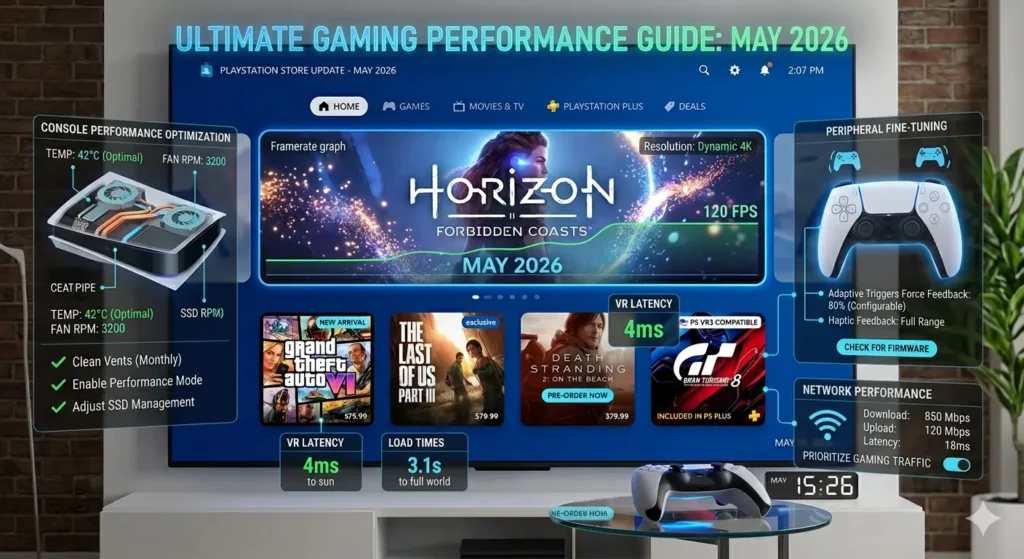
This gaming performance guide will help you boost FPS, reduce input lag, and improve overall gaming performance on PC, PS5, and Xbox Series X. Whether you enjoy competitive shooters, open-world adventures, racing games, or esports titles, this gaming performance guide covers the most effective optimization techniques available in 2026.
Moreover, modern games place greater demands on hardware than ever before. As a result, even powerful systems can suffer from frame drops, stuttering, and latency issues. Fortunately, a few adjustments can dramatically improve gaming performance without requiring expensive upgrades.
For more console-specific tips, check out our PS5 Optimization Guide.
Gaming Performance Guide: Hardware Foundations
Before changing software settings, make sure your hardware can handle modern games.
First, verify that your CPU, GPU, RAM, and storage meet the requirements of your favorite titles. Additionally, check that your system is properly cooled and free from dust buildup.
Most importantly, pay attention to VRAM capacity. If your graphics card runs out of available VRAM, performance problems often appear. Consequently, high-resolution textures may cause severe stuttering.
Therefore, matching your settings to your hardware remains one of the best ways to improve gaming performance.
Recommended Hardware for 2026
| Performance Tier | Resolution | CPU | GPU | RAM | Storage |
|---|---|---|---|---|---|
| Entry-Level | 1080p Medium | Ryzen 5 5600 / i5-12400 | GTX 1660 Super / RX 6600 | 16GB | 512GB SSD |
| Mid-Range | 1440p High | Ryzen 5 7600 / i5-13600K | RTX 4060 Ti / RX 6700 XT | 16GB | 1TB NVMe |
| High-End | 4K Ultra | Ryzen 7 7800X3D / i7-13700K | RTX 4080 / RX 7900 XTX | 32GB | 2TB NVMe |
Gaming Performance Guide: Windows 11 Optimization
Even powerful gaming PCs can underperform if Windows settings are not configured correctly.
Before making changes, create a System Restore Point. This step takes only a few minutes. However, it allows you to undo any changes if necessary.
Next, work through these essential settings.
Windows Optimization Checklist
| Setting | Recommended Action | Benefit |
|---|---|---|
| Game Mode | Enable | Prioritizes gaming processes |
| Hardware Accelerated GPU Scheduling | Enable | Reduces latency |
| Ultimate Performance Power Plan | Enable | Prevents CPU downclocking |
| Variable Refresh Rate | Enable | Reduces tearing |
| Xbox Game Bar | Disable | Frees resources |
| Windowed Game Optimizations | Enable | Improves responsiveness |
Furthermore, keep Windows fully updated. Likewise, install the latest GPU drivers from Nvidia, AMD, or Intel.
As a result, your system will deliver more consistent performance.
Gaming Performance Guide: In-Game Settings for Higher FPS
Many players automatically choose Ultra settings. However, Ultra settings often reduce performance while offering only minor visual improvements.
Instead, focus on settings that provide the biggest FPS gains.
Best Graphics Settings for Performance
| Setting | Recommended Value |
|---|---|
| Resolution | 1080p or 1440p |
| Shadows | Low |
| Anti-Aliasing | FXAA or Off |
| Textures | Medium |
| Motion Blur | Off |
| Depth of Field | Off |
| V-Sync | Off |
| Ray Tracing | Off |
Additionally, use DLSS, FSR, or XeSS whenever available.
These technologies improve gaming performance by rendering at a lower resolution and then intelligently upscaling the image.
Consequently, you can enjoy higher frame rates without sacrificing much visual quality.
For reaction speed training, check out our CPS Test Tool.
Gaming Performance Guide: Console Optimization
Although PS5 and Xbox Series X are powerful systems, proper settings still matter.
First, enable VRR if your display supports it. Additionally, activate 120Hz mode whenever possible.
Meanwhile, ensure your TV is set to Game Mode. Otherwise, input lag can increase dramatically.
PS5 Settings
- Enable VRR
- Enable 120Hz Output
- Use Game Mode
- Keep firmware updated
Xbox Series X|S Settings
- Enable VRR
- Enable 120Hz
- Activate FPS Boost where available
- Use Game Mode
Furthermore, use an Ethernet connection whenever possible.
As a result, both online performance and download speeds will improve.
For more PlayStation tips, visit our How to Claim PS Plus Games Guide.
Gaming Performance Guide: Reduce Lag and Improve Connectivity
Network performance is just as important as hardware performance.
First, use a wired Ethernet connection whenever possible. Compared to Wi-Fi, Ethernet provides lower latency and greater stability.
Additionally, keep your router firmware updated. Likewise, update your network drivers regularly.
Meanwhile, avoid large downloads while gaming.
Furthermore, choose the closest available game server.
As a result, your ping will remain lower and gameplay will feel smoother.
Quick Networking Tips
- Use Ethernet instead of Wi-Fi
- Update router firmware
- Restart networking equipment regularly
- Limit background downloads
- Select the nearest server region
For subscription comparisons, check out PS Plus June 2026 vs Game Pass.
Gaming Performance Guide: Monitor and Benchmark Results
Improving gaming performance becomes easier when you measure it accurately.
For example, MSI Afterburner provides detailed performance statistics. Similarly, Nvidia and AMD software includes useful monitoring tools.
Recommended Monitoring Tools
| Tool | Purpose |
|---|---|
| MSI Afterburner | FPS and hardware monitoring |
| RivaTuner | On-screen statistics |
| Nvidia App | Performance tracking |
| AMD Adrenalin | System monitoring |
| Windows Game Bar | Quick performance overview |
When analyzing results, monitor:
- FPS
- Frame Times
- GPU Usage
- CPU Usage
- Temperatures
Consequently, you can identify bottlenecks much faster.
Gaming Performance Guide: Advanced Tweaks
After completing the basic optimizations, advanced users can go further.
For example, disabling Fullscreen Optimizations may improve performance in some games.
Likewise, Nvidia users can enable Maximum Performance Mode and Low Latency Mode.
Meanwhile, AMD users should consider Radeon Anti-Lag.
However, make only one change at a time. Otherwise, it becomes difficult to identify which adjustment improved performance.
Therefore, test thoroughly after every tweak.
Frequently Asked Questions
What improves FPS the most?
Generally, lowering resolution and reducing shadow quality produce the largest FPS improvements. Additionally, disabling ray tracing can significantly increase performance.
Does Windows Game Mode help?
Yes. In most cases, Game Mode prioritizes gaming processes and reduces background interference.
Why does my gaming PC stutter?
Several issues can cause stuttering. For example, overheating, outdated drivers, insufficient VRAM, or background applications may be responsible.
How can I reduce input lag?
First, disable V-Sync when appropriate. Additionally, use wired peripherals and enable technologies such as Nvidia Reflex or AMD Anti-Lag.
Is 16GB RAM enough?
For most gamers, yes. However, 32GB can help with multitasking, content creation, and heavily modded games.
Final Thoughts
This gaming performance guide demonstrates that smoother gameplay does not always require expensive upgrades. Instead, improving gaming performance often comes down to proper settings, smart optimization, and routine maintenance.
Furthermore, following the recommendations in this gaming performance guide can help increase FPS, reduce lag, and create a more responsive gaming experience. Therefore, start with the basic tweaks and gradually move toward advanced optimizations.
Ultimately, the goal of any gaming performance guide is simple: smoother gameplay, faster reactions, and a better overall experience.
Next Steps
- Optimize your console with our PS5 Optimization Guide
- Improve reaction speed with our CPS Test Tool
- Discover new games in our PS Plus June 2026 Games Guide

