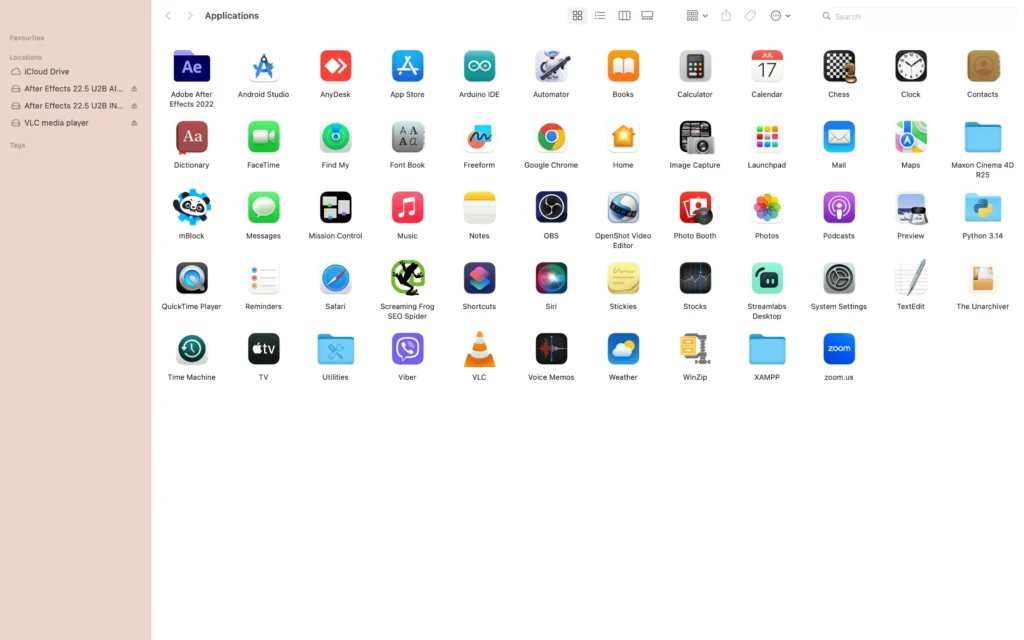
If you’re wondering how to uninstall applications on Mac, the process is usually quick and simple. Whether you want to free up storage space, remove unused software, or troubleshoot application issues, macOS provides several ways to uninstall programs safely.
In this tutorial, you’ll learn how to uninstall applications on Mac using Finder, Launchpad, and other built-in tools. Additionally, you’ll discover how to remove leftover files and solve common app removal problems. Furthermore, uninstalling unused applications can help keep your Mac organized. Therefore, regular app maintenance is recommended.
What Does Uninstall Applications on Mac Mean?
Uninstalling an application on Mac means completely removing a program from your computer. In most cases, this involves deleting the application and, if necessary, removing associated files.
For example, users often uninstall applications to:
- Free up storage space
- Remove unused software
- Fix software problems
- Improve system performance
- Replace older versions of apps
Because unused applications can consume storage and resources, removing them regularly helps keep your Mac organized. Additionally, removing unnecessary software can make it easier to manage storage space. As a result, your Mac may feel less cluttered.
How to Uninstall Applications on Mac Using Finder
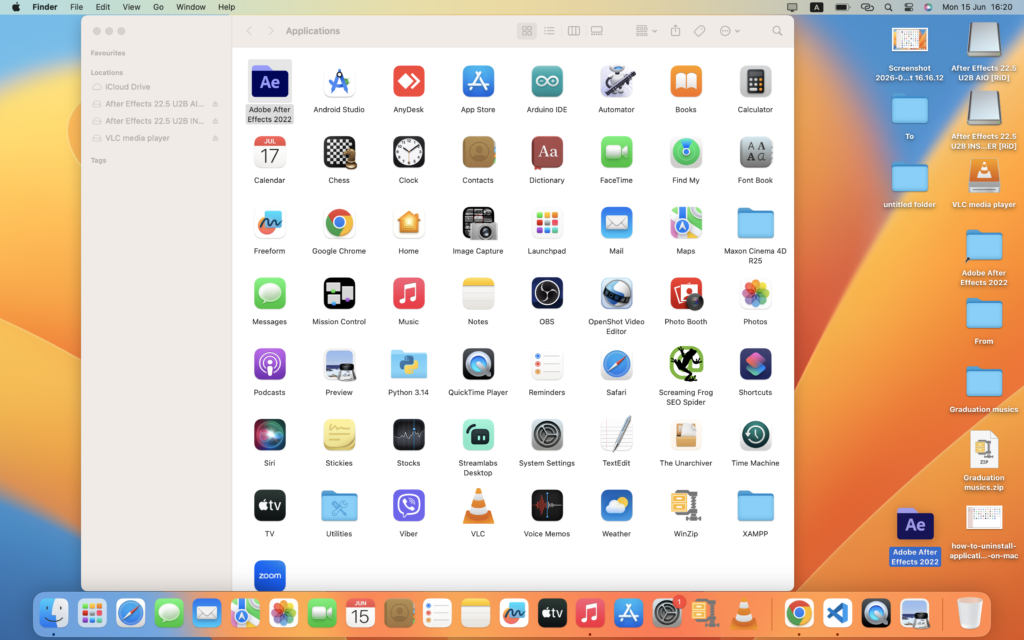
The most common method is using Finder.
Step 1
First, open Finder, then from Top bar menu Click Go .
Step 2
Next, click Applications.
Step 3
Then, locate the application you want to remove.
Step 4
Afterward, drag the application to the Trash.
Step 5
Finally, empty the Trash.
As a result, the application is removed from your Mac. Moreover, Finder is the method most Mac users rely on. Consequently, it is often the easiest way to remove applications.
How to Remove Leftover Application Files on Mac
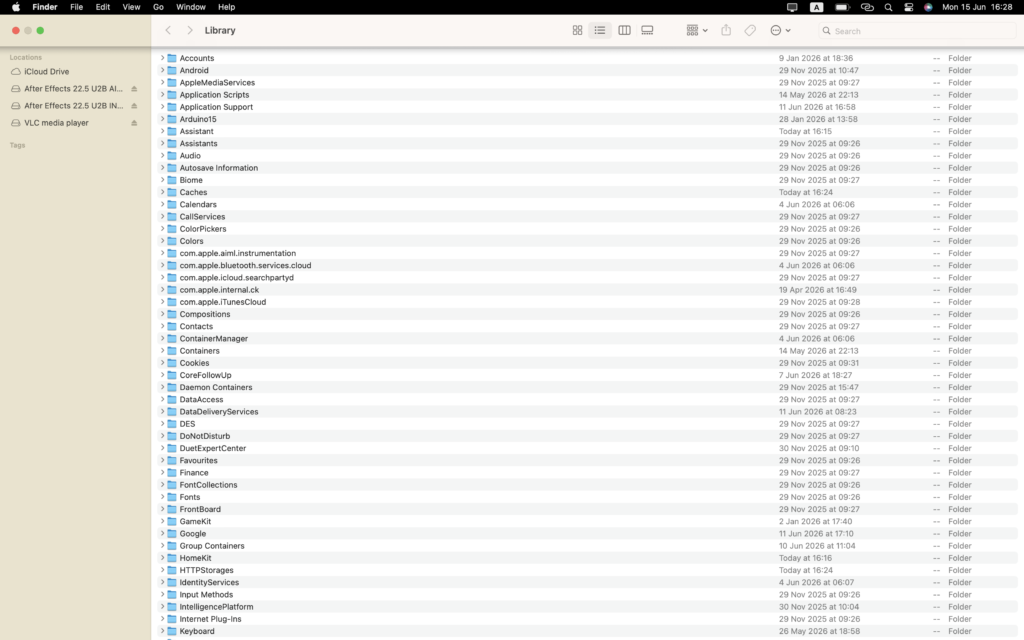
Sometimes applications leave behind support files.
Step 1
Open Finder.
Step 2
Next, click Go in the menu bar.
Step 3
Then, select Go to Folder.
Step 4
Enter:
~/Library
Step 5
Finally, review folders such as:
- Application Support
- Caches
- Preferences
As a result, you can remove leftover files related to deleted applications. Furthermore, deleting leftover files can help recover additional storage space. Therefore, it is worth checking these folders after uninstalling large applications.
How to Uninstall Applications Downloaded From the App Store
Applications installed through the App Store can often be removed using Launchpad.
Step 1
Open Launchpad.
Step 2
Next, locate the application.
Step 3
Then, click and hold the icon.
Step 4
Finally, click the X button if available.
Consequently, the app is removed from your Mac. In addition, App Store applications are often easier to remove because macOS manages them automatically.
Common Problems When Uninstalling Applications on Mac
Fortunately, most uninstall problems can be resolved using one of the methods below.
Application Won’t Delete
First, close the application completely.
Next, check whether it’s running in the background.
Finally, restart your Mac and try again.
No X Button Appears
Some applications cannot be removed through Launchpad.
Therefore, use Finder instead.
Leftover Files Remain
Even after deleting an application, support files may remain.
Consequently, checking the Library folder can help reclaim storage space.
Tips for Managing Applications on Mac
To keep your Mac organized:
- Remove unused apps regularly.
- Empty the Trash after uninstalling software.
- Review storage usage periodically.
- Keep applications updated.
- Delete unnecessary support files.
Additionally, regular maintenance helps improve system performance. Furthermore, removing unused software can free up valuable storage space. Moreover, reviewing installed applications regularly helps identify software you no longer need. Consequently, your Mac stays cleaner and more organized.
Frequently Asked Questions About How to Uninstall Applications on Mac
How do I uninstall applications on Mac?
Open Finder, go to Applications, drag the app to the Trash, and empty the Trash.
Can I uninstall apps using Launchpad?
Yes. Some applications installed from the App Store can be removed directly from Launchpad.
Why can’t I delete an application?
The application may still be running or protected by macOS permissions.
Do deleted apps leave files behind?
Sometimes. Therefore, you may need to check the Library folder for leftover files.
Does uninstalling apps free up storage?
Yes. Removing unused applications can free up storage space on your Mac.
Conclusion
Now you know how to uninstall applications on Mac using Finder, Launchpad, and built-in macOS tools. First, you can remove most applications through Finder. Alternatively, App Store apps can often be removed through Launchpad. Furthermore, checking for leftover files helps ensure a complete uninstall.
Furthermore, macOS includes several built-in tools for removing applications. Therefore, most users can uninstall software without additional utilities. Meanwhile, regular maintenance helps keep your system organized and running efficiently.
As a result, you’ll keep your Mac cleaner, more organized, and easier to manage. Ultimately, learning how to uninstall applications on Mac is an important part of maintaining a healthy and efficient system.