Google Family Link is a powerful free tool that helps you manage your child’s digital life, from screen time limits to app approvals and location tracking. This comprehensive guide walks you through everything you need to know about setting up and using Family Link effectively.
What Is Google Family Link?
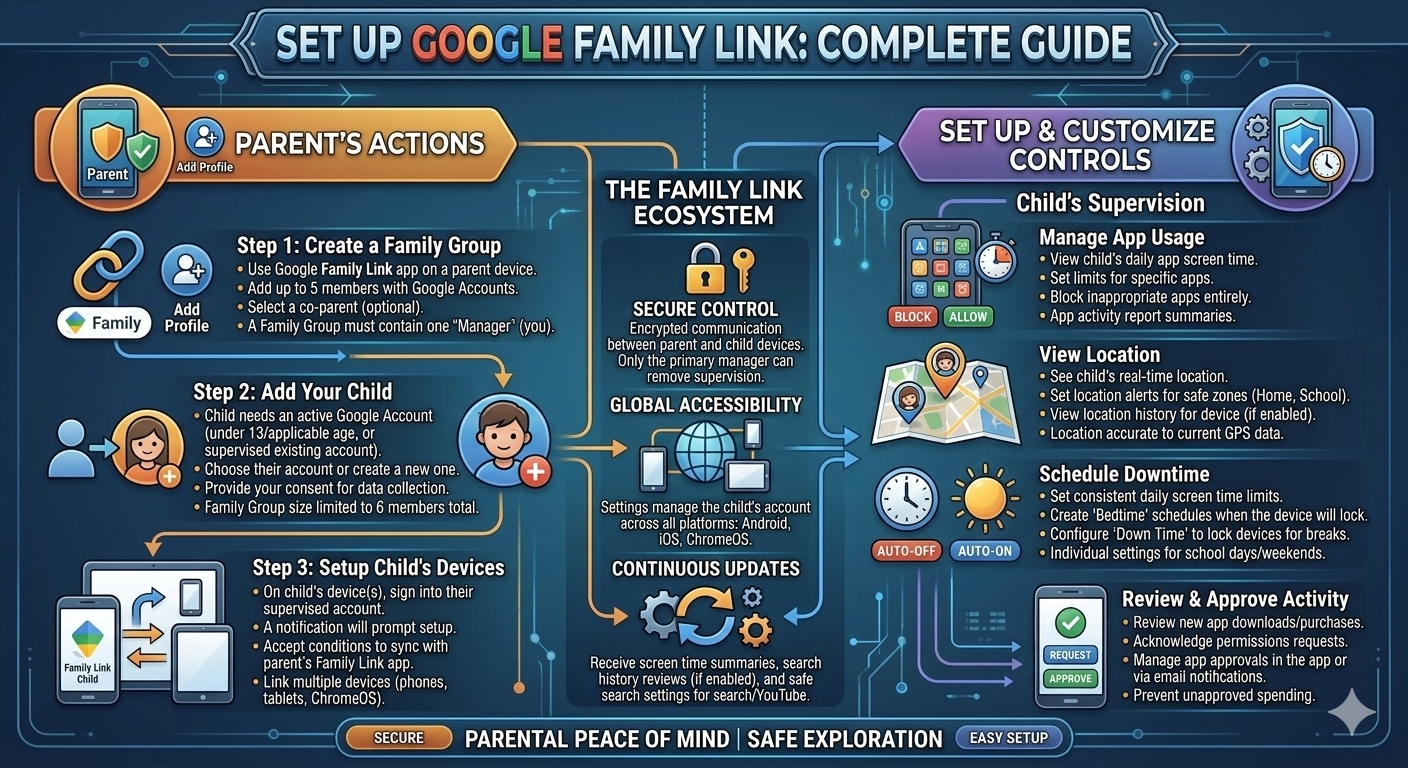
Google Family Link is a parental control app that allows you to set digital ground rules for your child’s Android device or Chromebook . With it, you can:
Manage screen time: Set daily limits and bedtime schedules
Approve or block apps: Control what your child downloads
See device location: Track where your child is (on Android devices)
Set content filters: Restrict mature content on Google services
View activity reports: See how much time your child spends on each app
Best of all, Family Link is completely free with no subscriptions or hidden costs .
Before You Start: Requirements
Requirement
Details
Parent Google account
You need your own Google account (must be 18 or older)
Child Google account
Your child needs a Google account (you can create one during setup)
Child’s device
Android 6.0 or higher, Chromebook with Chrome OS 71+, or compatible Fitbit
Parent’s device
Android 5.0+, iPhone/iPad with iOS 13+, or Chromebook with Android app support
Same country
Both parent and child accounts must be in the same country
Supported region
Family Link must be available in your country
Single account
Child’s device can only have one Google account during setup (others will be removed)
Two Ways to Set Up Family Link
You can set up Family Link either during initial device setup (when setting up a new phone for your child) or on an existing device. We’ll cover both methods.
Method 1: Setup During New Device Configuration (Recommended)
This is the smoothest approach when you’re setting up a brand new phone for your child .
Step 1: Create or Sign In to Your Child’s Google Account
Turn on your child’s new Android device
Follow the initial setup prompts until you reach the “Sign in with a Google Account” screen
Tap “Create a new account” and select “For my child”
Enter your child’s first name, last name, and birth date
Create a Gmail address and secure password
Follow the prompts to connect your Google account as the parent
Step 2: Accept Parental Controls
Google will ask you to review the supervision terms. Read them and tap “I Accept”
You may need to verify your identity by entering your Google account password or completing two-factor authentication
Choose whether to apply simple controls (same settings for everything) or customize each setting individually
Step 3: Configure Initial Restrictions
Review and adjust settings for:
Google Play Store app restrictions (age-based filtering)
Chrome web filters (block adult sites or allow only specific sites)
Google Search SafeSearch settings
YouTube content restrictions
Decide whether to allow Google services to share data
Review and confirm all settings, then tap “Confirm”
Step 4: Set Screen Time Rules
Configure a daily screen time limit (e.g., 2 hours per day)
Set a bedtime schedule (e.g., 9 PM to 7 AM when the device locks automatically)
Enable location sharing so you can see where your child is
Step 5: Complete Device Setup
Choose which pre-installed apps your child can access
Configure YouTube experience (YouTube Kids or supervised YouTube)
Tap “Finish setup”
Download the Family Link app on your own phone from the Play Store (Android) or App Store (iPhone)
Method 2: Setup on an Existing Device
If your child already has a device in use, follow these steps :
On Your Child’s Device:
Open Settings
Scroll down and tap “Digital Wellbeing and parental controls”
Scroll to the bottom and tap “Set up parental controls”
Tap “Get started” and select “Child or teen”
Sign in with your child’s Google account (create one if needed)
Follow the on-screen instructions to link to your parent account
On Your Parent Device:
Install the Google Family Link app from the Play Store (Android) or App Store (iPhone)
Open the app and sign in with your Google account
Tap “Continue as [Your Name]”
You should see your child’s account appear automatically
Using Family Link: Key Features
Once setup is complete, here’s how to use the main features from your parent device.
Managing Screen Time
Open the Family Link app on your phone
Tap “Screen time” or go to the Controls tab
You’ll see options to:
Set daily limit: Choose how many hours per day your child can use the device
Set bedtime/downtime: Schedule when the device locks automatically (e.g., school hours or nighttime)
Lock now: Instantly lock the device remotely
Give bonus time: Add extra time for today
Approving or Blocking Apps
When your child tries to download an app from the Google Play Store:
They’ll see options to “Ask in a message” or “Ask in person”
If they choose “Ask in a message,” you’ll receive a notification on your phone
Open the Family Link app to Approve or Deny the request
To set limits on existing apps:
In Family Link, go to Controls > App limits
Select any app and choose:
Block: Prevent access entirely
Set limit: Choose how long per day they can use it
Always allow: No restrictions
Setting Content Restrictions
In Family Link, go to Controls > Content restrictions
Configure settings for:
Google Play: Filter apps, games, movies, and books by age rating
YouTube: Turn on Restricted Mode or choose YouTube Kids
Chrome: Block adult sites or allow only specific websites
Google Search: Turn on SafeSearch to filter explicit results
Google Assistant: Restrict certain features
Tracking Your Child’s Location
In Family Link, tap the Location tab
You’ll see your child’s current location on a map
Pull up the menu and tap “Family places” to save important locations like home and school
Once saved, you’ll receive notifications when your child arrives at or leaves these places
To make a lost device ring (even if on silent):
In Family Link, go to Controls > select your child’s device
Tap “Play sound” – it will ring for 5 minutes
Adding a Second Parent
Both parents can supervise your child’s account :
Open Family Link on the primary parent’s device
Tap your child’s profile
Select Settings > Manage family members > Invite a family member
Enter the second parent’s email address
The second parent will receive an invitation to join
Once accepted, they’ll have full access to manage settings from their own device
Family Link on iPhone: Important Limitations
If your child uses an iPhone or iPad, Family Link has significant limitations :
What Family Link CAN do on iOS:
Manage Google services (Search, Chrome, YouTube, Gmail)
Set SafeSearch filters
Control YouTube Kids settings
What Family Link CANNOT do on iOS:
Set screen time limits
Block non-Google apps
Track precise location
Control App Store downloads
Monitor app usage
For iOS devices, you may need Apple’s built-in Screen Time or third-party alternatives for full control.
When Your Child Turns 13
In most countries, children can choose to manage their own Google account when they turn 13 :
On their birthday, they’ll receive a notification with the option to take over account management
If they choose to end supervision, the device will be locked for 24 hours before the change takes effect
This is a good opportunity to have a conversation about digital responsibility
Note: The age may vary by country (e.g., 14 in some European countries).
Troubleshooting Common Issues
Setup keeps failing or resetting
This process can sometimes be buggy. Be patient—it may take 2-3 attempts
Ensure your child’s account is part of your Google Family before starting
“Can’t find the setting”
Make sure Family Link is supported in your country
If using a work/school account, your administrator may have disabled it
Child bypassing restrictions
While Family Link is robust, tech-savvy kids may find workarounds. Search online for tutorials to understand potential loopholes
Child turned 13 and wants to stop supervision
They can manage their own account now. Have an open conversation about online safety moving forward
Quick Reference Card
Task
Action
Install on parent phone
Play Store/App Store → “Google Family Link”
Set daily screen limit
Family Link → Controls → Daily limit
Set bedtime
Family Link → Controls → Downtime
Lock device now
Family Link → Controls → Lock
Approve app download
Respond to notification or check app requests
Track location
Family Link → Location tab
Add second parent
Profile → Settings → Manage family → Invite
Content filters
Controls → Content restrictions
Final Checklist
✅ Parent and child have Google accounts ✅ Both devices meet minimum requirements ✅ Child’s device has only one Google account ✅ Family Link app installed on parent device ✅ Screen time limits configured ✅ Bedtime schedule set ✅ Content restrictions applied ✅ Location sharing enabled ✅ Second parent invited (if desired) ✅ Backup parent account info saved
Final Verdict
Google Family Link is an excellent free tool for parents who want to guide their children’s digital experiences. While setup can sometimes be finicky, the ongoing control it provides—from screen time limits to app approvals and location tracking—makes it invaluable for modern parenting .
Start with the basics: set a daily limit, configure bedtime hours, and enable content filters. As your child grows, you can adjust these settings and eventually have the conversation about digital independence when they turn 13.
For iOS users, be aware of the limitations and consider supplementing with Apple’s built-in controls or third-party alternatives for full device management.