Physical Address
304 North Cardinal St.
Dorchester Center, MA 02124
Physical Address
304 North Cardinal St.
Dorchester Center, MA 02124
Gadgets & Lifestyle for Everyone
Gadgets & Lifestyle for Everyone
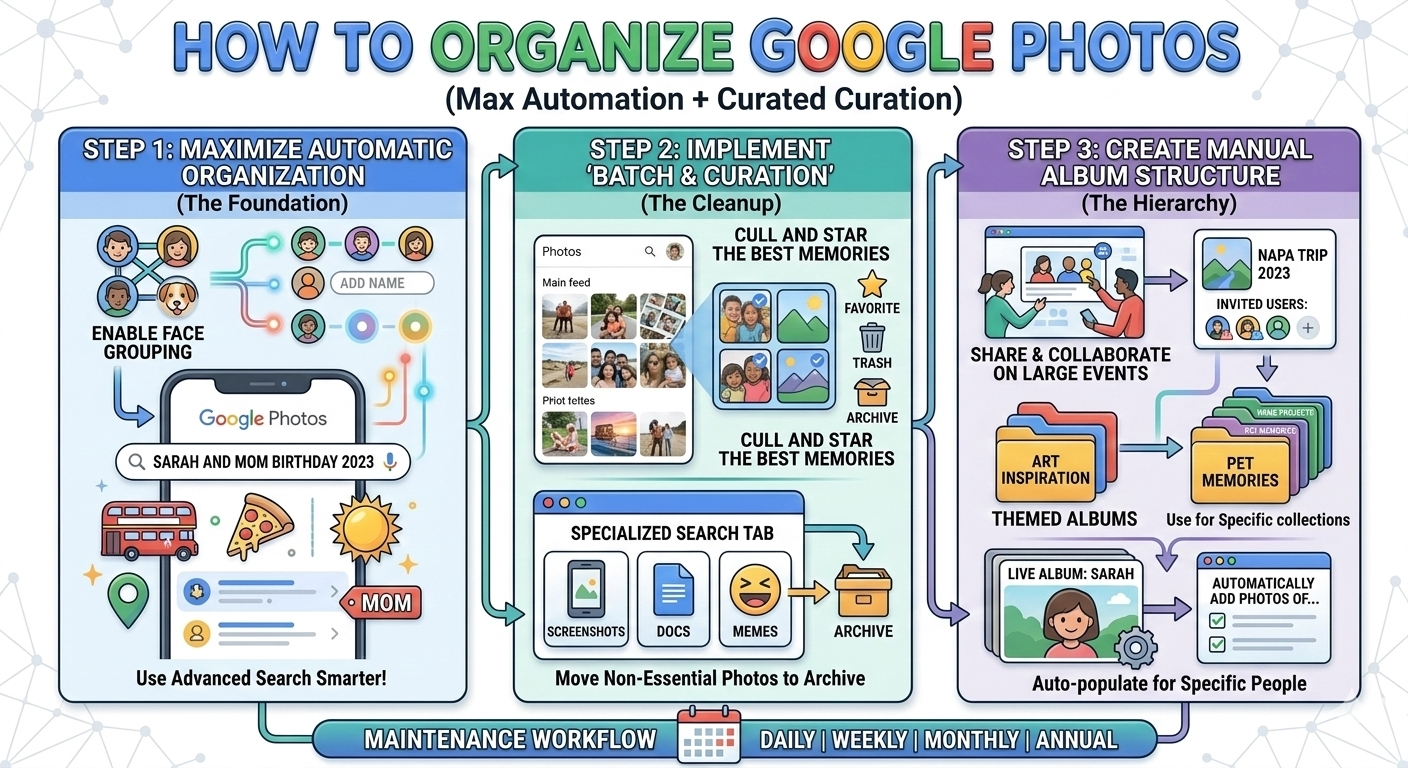
A messy Google Photos library can make finding your favorite memories feel like searching for a needle in a haystack. Fortunately, Google has rolled out powerful new tools that put you in control. This guide covers everything from smart AI features to manual organization tricks.
| Benefit | What It Means |
|---|---|
| Find photos instantly | Stop scrolling endlessly—search by face, place, or object |
| Save storage space | Remove duplicates, blurry shots, and unwanted screenshots |
| Enjoy memories | See curated highlights without the clutter |
| Share easily | Create clean albums for family and friends |
Before organizing, ensure all your photos are safely backed up .
Once backup is active, use “Free up space” to remove local copies from your device .
Google Photos does much of the heavy lifting automatically. Here’s how to make the most of it.
Enable face grouping to automatically sort photos by the people and animals in them .
To name faces:
Google now also identifies pets automatically—no more endless scrolling for dog photos .
The search bar is incredibly powerful. Just type what you’re looking for :
The AI recognizes objects, scenes, text inside images, and even specific people once you’ve named them .
Photo stacks are one of the most useful organization features. They group similar photos taken around the same time into a single thumbnail, saving precious screen space .
Google automatically identifies and stacks images it considers similar. Tap any stacked photo to expand and see all images inside .
The latest update lets you create stacks manually—a game-changer for control freaks .
On iOS (currently available):
Note: This feature is rolling out first on iOS and should reach Android and web soon .
Why this matters: You can now group any photos you want, even if Google didn’t automatically stack them. Perfect for events, outings, or just keeping your feed tidy .
Albums are the classic way to organize, but Google makes them dynamic.
This is where Google Photos shines. You can create albums that automatically add new photos of specific people or things .
Example: Create an album for your child, and every new photo of them will automatically appear there.
Google Photos now automatically sorts your documents into smart albums .
You’ll see categories like:
To keep your main feed clean, enable auto-archiving :
Photos older than 30 days will move out of your main view but remain accessible in Collections.
If Google miscategorizes a document, you can fix it :
On iPhone/iPad:
On Web:
Tired of seeing memes, screenshots, and random app images?
This hides photos from non-camera apps, giving you a cleaner camera roll.
The Locked Folder keeps sensitive photos hidden behind your screen lock .
To set it up:
These photos won’t appear in your main feed, memories, or shared albums. You can choose to back them up (making them accessible across devices) or keep them only on your current device .
Organization isn’t a one-time task. Here’s how to stay on top of it.
The Files by Google app intelligently suggests items to delete :
| Task | Frequency |
|---|---|
| Review and delete screenshots | Weekly |
| Check “Stack similar photos” accuracy | Monthly |
| Create albums for recent events | After each trip/event |
| Empty trash (items stay 60 days) | Monthly |
| Review document categories | Quarterly |
Sometimes organization means finding what you need fast. Google Photos search is incredibly powerful .
Try searches like:
The new “Ask Photos” feature (powered by Gemini AI) will soon let you ask complex questions like “Show me photos of Alice and me at the beach last summer” .
| Task | Action |
|---|---|
| Enable backup | Profile → Photos settings → Backup |
| Stack similar photos | Three-dot menu → Stack similar photos |
| Create manual stack | Select photos → Stack photos |
| Name faces | Search tab → Face → Assign name |
| Create album | + → Album → Add photos |
| Find documents | Collections → Documents |
| Hide clutter | Three-dot menu → Hide clutter from apps |
| Lock private photos | Collections → Locked Folder → Move items |
✅ Backup enabled (with preferred quality)
✅ Face grouping turned on
✅ Similar photos stacking activated
✅ Key people named in Search
✅ Document albums reviewed
✅ Locked Folder set up for private items
✅ Clutter hidden from other apps
✅ Trash emptied (optional)
✅ Auto-archive configured for old documents
Google Photos in 2026 offers more organization power than ever. The combination of AI automation and manual controls—especially the new manual stacking—lets you create a library that’s both tidy and deeply personal .
Start with the basics: enable backup, turn on face grouping, and activate photo stacking. Then gradually explore albums, document organization, and the Locked Folder. With regular maintenance, you’ll never lose a memory again.