Physical Address
304 North Cardinal St.
Dorchester Center, MA 02124
Physical Address
304 North Cardinal St.
Dorchester Center, MA 02124
Gadgets & Lifestyle for Everyone
Gadgets & Lifestyle for Everyone
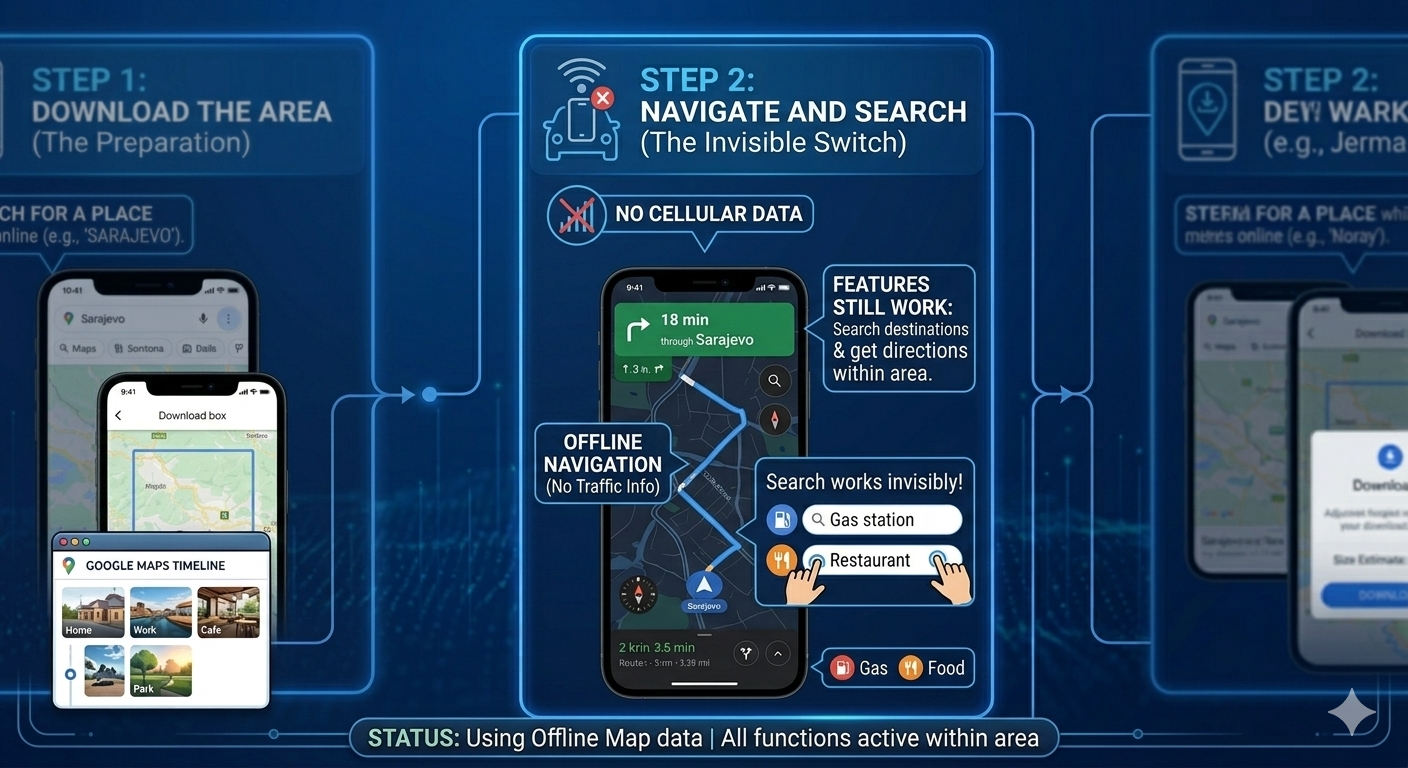
Getting lost without an internet connection is frustrating—but completely avoidable. Google Maps offers a powerful offline mode that lets you navigate anywhere, even when you’re off the grid. Here’s your complete guide on how to use Google Maps offline, including downloading maps, managing storage, and what to expect when you’re disconnected.
You must download map areas before you need them—there’s no magic here. Once downloaded, your phone stores those maps locally, and Google Maps automatically switches to offline mode when you lose internet connection .
Key facts:
This method gives you complete control over exactly which region you save.
Step 1: Open the Google Maps app on your Android or iPhone .
Step 2: Tap your profile picture or avatar in the top-right corner .
Step 4: Tap Select your own map .
Step 5: Adjust the map area:
Step 7: Wait for the download to complete (use Wi-Fi—files can be up to 1.5GB) .
If you just need a specific city, this method is quicker .
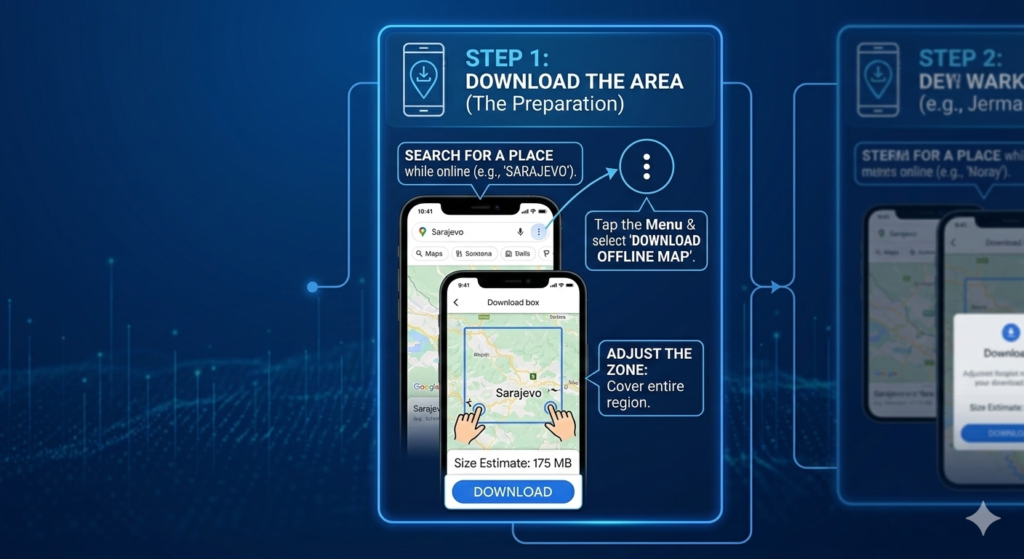
Step 1: Search for the city or place you want (e.g., “Paris, France”) .
Step 2: Tap the place name at the bottom of the screen .
Step 3: Swipe up on the menu and tap the More button (three dots) .
Step 4: Select Download offline map .
Step 5: Google automatically selects an area—tap Download to confirm .
Note: On iPhone, you can also tap the Download button that appears directly in the pull-up window after searching for a city .
Offline maps get auto-generated names like “Map 1” or “Map 2.” You can rename them :
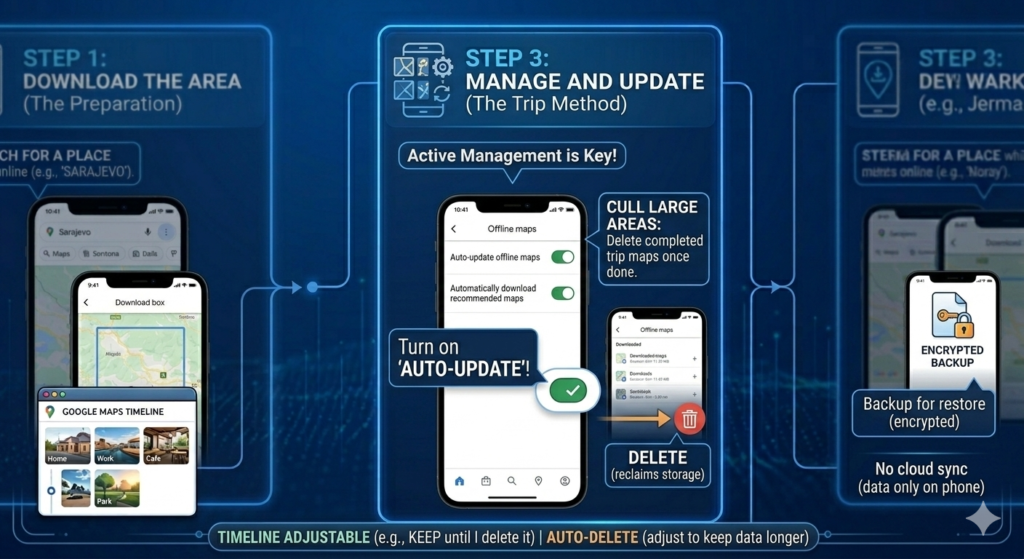
This is the single most important setting for reliable offline navigation. Without updates, your maps become inaccurate as roads change, businesses close, and new routes appear .
Why it matters: Downloaded maps expire after 15 days unless updated . Auto-update keeps them fresh automatically .
How to enable it:
If your phone has a microSD card, you can save storage space :
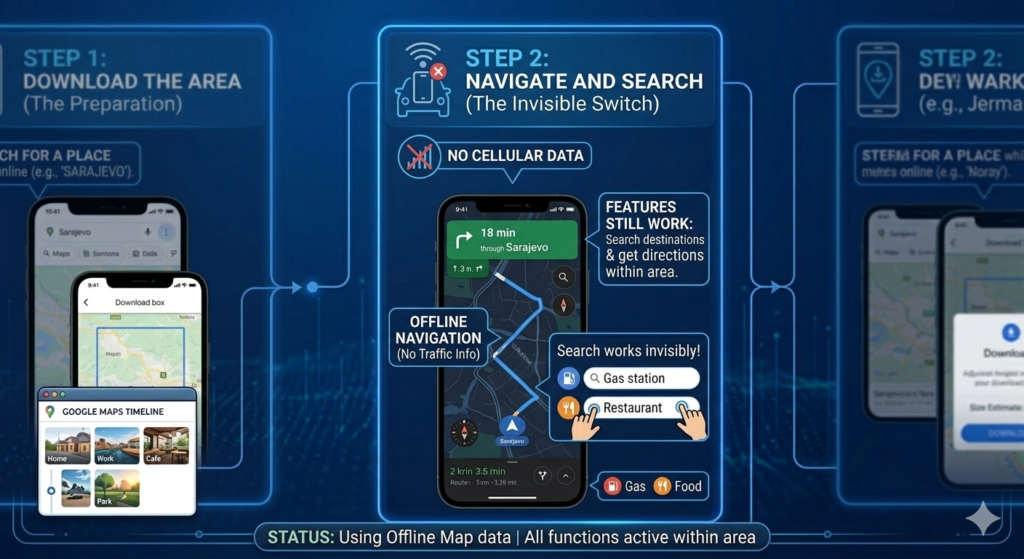
Even without downloading full maps, Google Maps temporarily caches routes you’re actively navigating .
How to use it:
Limitations: This is temporary—you can’t search for new places or change routes once offline . Always download full maps for reliable coverage.
Note: Estimated arrival times are less accurate offline because they can’t account for real-time traffic conditions .
Instead of downloading multiple small maps, download one larger region that covers your route plus surrounding areas . This ensures continuous coverage if you detour.
Star (save) places you frequently visit—hotels, campgrounds, meeting points. They remain visible on your offline maps and you can get directions to them anytime .
Offline maps can take significant space—a large city area might use 1.5GB . Check your available storage before downloading, especially if enabling auto-updates .
Test offline mode at home: enable Airplane mode, then open Google Maps and try navigating within your downloaded area . This confirms everything works before you rely on it.
Unless you have unlimited data, always download maps when connected to Wi-Fi. A single map can be hundreds of megabytes .
Solution: Enable Auto-update offline maps (see instructions above). Without updates, maps expire after 15 days . To update manually:
| Task | Action |
|---|---|
| Download a map | Profile → Offline maps → Select your own map → Choose area → Download |
| View downloaded maps | Profile → Offline maps |
| Rename a map | Three dots next to map → Rename |
| Delete a map | Three dots → Delete |
| Enable auto-update | Profile → Offline maps → Gear icon → Toggle on Auto-update |
| Move to SD card | Profile → Offline maps → Gear icon → Storage Preferences → SD card |
| Temporary route cache | Start navigation online; continues offline if connection drops |
✅ Downloaded offline maps for your destination region
✅ Enabled Auto-update offline maps (critical!)
✅ Set download preference to Wi-Fi only (if data-limited)
✅ Tested offline mode before traveling
✅ Starred important locations
✅ Checked available storage space
✅ Downloaded larger region with buffer around your route
Google Maps offline mode is a powerful, free tool that transforms your phone into a reliable GPS—no internet required. The key to success is preparation: download maps before you go, enable auto-updates, and understand the limitations.
Once set up, you’ll never fear losing signal again. Whether you’re hiking remote trails, driving through rural areas, or traveling internationally to save on roaming, offline maps have your back.
Pro tip: Combine offline maps with starred locations and auto-updates for the most reliable navigation experience possible .