Moving your Google Authenticator codes to a new phone is essential for keeping access to your secure accounts. Do this step correctly, and you won’t get locked out of important services like email, banking, and social media. This guide shows you how to set up Google Authenticator on a new phone using the best transfer methods, plus what to do if problems arise.
Why This Matters
Google Authenticator creates time-based one-time passwords (TOTP) that add a second layer of security to your accounts. Unlike SMS codes, these passwords generate locally on your device—so they won’t transfer automatically when you get a new phone. Without a proper transfer, you’ll lose access to every account secured with Authenticator until you can prove your identity another way.
Prepare Before You Start
Taking a few minutes to prepare can prevent major headaches later.
Find your backup codes: Before doing anything, locate the backup codes for your most critical accounts, like your primary email. Keep them in a safe place, such as a password manager.
Make a list of your accounts: Write down every account you use with Google Authenticator. This helps ensure nothing gets missed during transfer.
Charge both phones: Your old phone needs power for the QR code transfer.
Download the app: Install Google Authenticator on your new phone from the Google Play Store (Android) or Apple App Store (iPhone).
Method 1: Use the Built-in Transfer Tool (Recommended)
This easiest method works if you still have your old phone. Both Android and iPhone support it, as long as both devices run the latest app version.
Step-by-Step Instructions
Step 1: On Your Old Phone
Launch Google Authenticator.
Tap the three-dot menu or your profile icon in the top-right corner.
Choose Transfer accounts.
Select Export accounts.
Verify your identity with your phone’s PIN, pattern, or fingerprint.
Pick the accounts you want to transfer. Tap “Select all” to move everything at once.
Press Next or Export. Your old phone will display a QR code.
Step 2: On Your New Phone
Open Google Authenticator on your new device.
Tap Get Started.
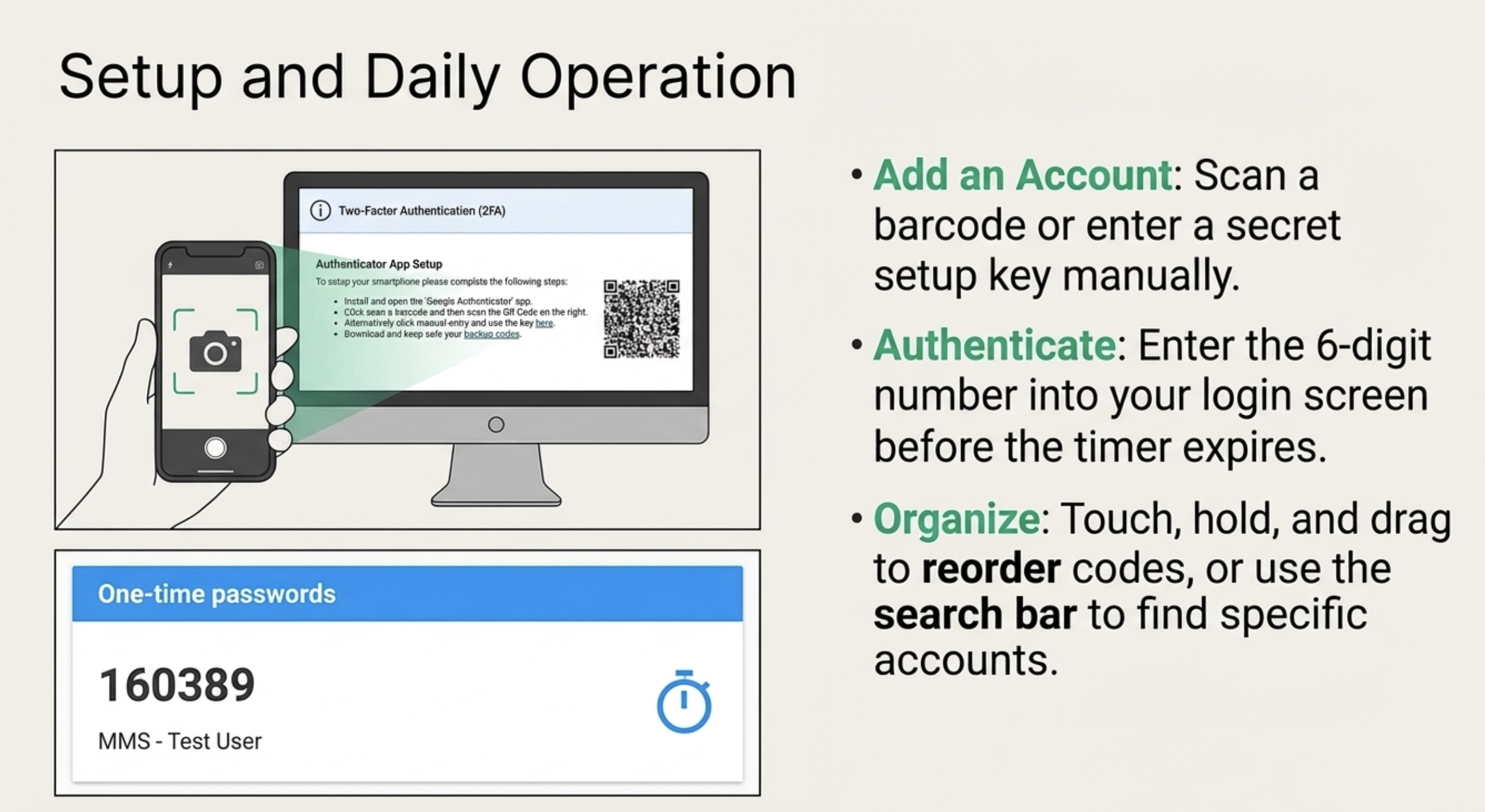
Choose Import existing accounts? or Scan a QR code.
Allow camera access, then scan the QR code shown on your old phone.
Step 3: Finalize
After scanning, your accounts appear on the new phone. Tap Done or Finish on both devices.
Critical step: Test logging into one of your most important accounts to confirm the new codes work before wiping your old phone.
⚠️ Note: The transfer tool moves only 10 accounts at once. If you have more than 10, repeat the export/import process multiple times.
Method 2: Manual Transfer (Without Your Old Phone)
When your old phone is lost, broken, or the transfer tool fails, you’ll need to add each account manually. This process requires backup codes or access to each service’s account settings.
Step-by-Step Instructions
Step 1: Gather Your Backup Codes
For each 2FA-secured account (Google, Facebook, Amazon, banking apps), locate the backup codes you received during initial setup.
If you can’t find backup codes, try logging into each account using your password and an SMS code if available. Navigate to security settings and generate new codes.
Step 2: Add Accounts on the New Phone
Open Google Authenticator on your new phone.
Tap the + button.
Select Enter a setup key.
Type a name for the account (like “Gmail” or “Chase Bank”).
Enter the secret key—a long string of letters and numbers from the service’s 2FA setup page.
Tap Add. The account now appears on your new phone.
Repeat for every account.
Step 3: Verify Everything Works
Test each account by logging in and confirming the generated code works.
📝 Tip: Many services let you scan a QR code from their website. If available, use the “Scan a QR code” option in Authenticator instead of typing secret keys.
Troubleshooting Common Problems
“I don’t have my old phone at all.”
Solution: Use your backup codes to log into each account, then disable and re-enable 2FA to set it up on your new device. Without backup codes, you’ll need to go through account recovery for each service—a time-consuming process. Start with your most important accounts first.
“The QR code scan keeps failing.”
Solution:
Clean your new phone’s camera lens.
Turn up the brightness on your old phone.
Move to a well-lit area without glare.
Try the manual method by selecting “Enter a setup key” and copying the key if your old phone shows it.
Restart both phones and attempt again.
“The codes on my new phone don’t work.”
Solution: This usually means a time sync issue. Google Authenticator depends on your phone’s accurate clock.
On Android: Go to Authenticator settings → Time correction for codes → Sync now.
On iPhone: Check that your date and time are set to “Set Automatically” in Settings → General → Date & Time.
After syncing, the codes should work properly.
“I have more than 10 accounts.”
Solution: The Google Authenticator transfer tool handles only 10 accounts per export. Repeat the export/import process multiple times, selecting different groups of accounts each round.
“Some accounts didn’t transfer.”
Solution:
Double-check whether you selected them during export.
Add any missing accounts using the manual method.
Keep your old phone until you’ve verified all accounts work on the new device.
“The app crashes during export.”
Solution:
Update Google Authenticator to the latest version on both phones.
Restart both devices.
Clear the app cache on your old phone (Android: Settings → Apps → Google Authenticator → Storage → Clear Cache).
Try exporting fewer accounts at a time.
Important Security Tips
Keep your old phone for now: After transferring, hold onto your old phone for a few days to confirm the new one works perfectly with all accounts. Discovering a missed account later is much easier with your old device still available.
Factory reset your old phone: Once you’ve confirmed everything works, perform a factory reset on your old phone before trading it in, selling it, or recycling it. This permanently erases your data, including the Google Authenticator codes.
Store backup codes safely: Always keep copies of your backup codes in a secure place like a password manager (Bitwarden, 1Password, LastPass) or a safe deposit box. Never save them as plain text on your phone.
Try an alternative app: Apps like Authy and Microsoft Authenticator offer encrypted cloud backups and sync your 2FA codes across multiple devices. This makes switching phones much easier in the future. Authy even lets you recover your codes if you lose your phone.
Choose authenticator apps over SMS: For maximum security, always use an authenticator app instead of SMS text messages for 2FA. SIM swapping attacks can intercept SMS codes, but authenticator codes generate locally on your device and remain much more secure.
Enable biometric lock: In Google Authenticator settings, you can turn on fingerprint or face unlock to add an extra security layer to the app itself.
Quick Decision Guide
Your Situation
Best Method
You have both phones
Automatic transfer (Method 1)
Old phone is lost or broken
Manual transfer using backup codes (Method 2)
Transfer tool isn’t working
Try manual transfer (Method 2)
More than 10 accounts
Repeat automatic transfer multiple times
Want easier future transfers
Switch to Authy or Microsoft Authenticator
Final Checklist
✅ Backed up critical account recovery codes ✅ Listed all accounts using Google Authenticator ✅ Transferred accounts using preferred method ✅ Tested codes on new phone for important accounts ✅ Kept old phone until verification complete ✅ Factory reset old phone after confirmation ✅ Considered switching to cloud-backed authenticator app
Final Verdict
Setting up Google Authenticator on a new phone doesn’t need to cause stress. The built-in transfer tool makes the process smooth when you have both devices available. If you’re starting fresh without your old phone, having backup codes ready becomes essential.
Preparation makes all the difference—know your accounts, keep backup codes accessible, and verify everything works before wiping your old device. Follow this guide step by step, and you’ll securely access all your accounts on your new phone in no time.
Found this guide helpful? Consider switching to an authenticator app with cloud backup for an even smoother experience next time you upgrade.