How to Change Home Address in Google Maps: Step-by-Step Guide

Your home and work addresses in Google Maps power more than just navigation. They influence commute estimates, local recommendations, restaurant suggestions, and even traffic alerts. When you move to a new place, updating this information ensures Google continues serving you accurately. Here’s your complete guide on how to change home address in Google Maps across all devices.


Why Update Your Home Address?

BenefitWhat It Means
Accurate commute timesGet real traffic estimates for your actual daily route
Better local recommendationsRestaurant and business suggestions match your new neighborhood
Relevant traffic alertsReceive notifications about incidents along your current routes
Correct weather infoWeather updates reflect where you actually live
Seamless Google integrationYour address syncs across Search, Assistant, and Calendar

Before You Start

  • You need an internet connection to update your address
  • Ensure you’re signed into the same Google account across all devices
  • Changes sync automatically—update once, and it reflects everywhere

Step-by-Step: How to Change Home Address in Google Maps

Method 1: Change Home Address on Android or iPhone

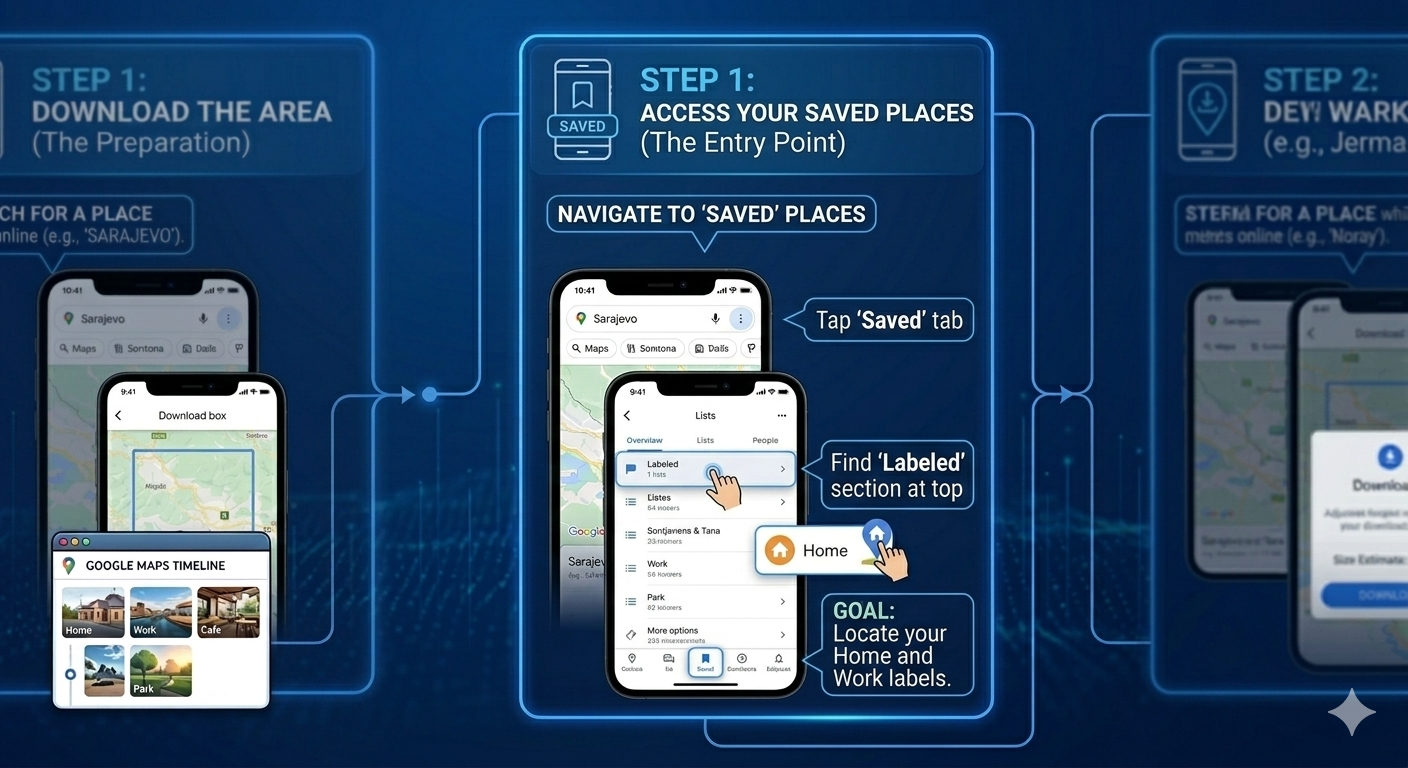
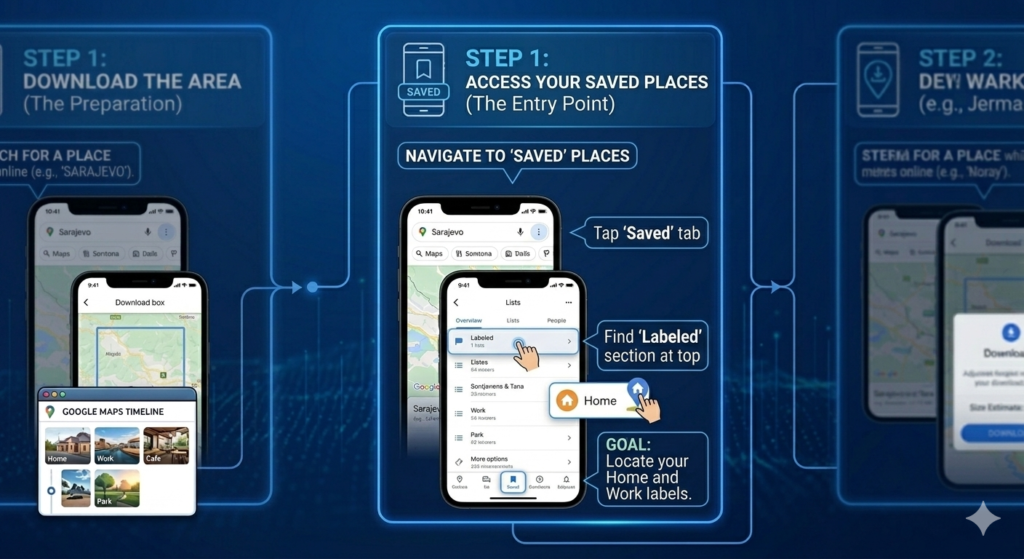
Step 1: Access Your Saved Places

  1. Open the Google Maps app on your phone
  2. Tap the Saved icon (looks like a bookmark ribbon) at the bottom of the screen
  3. At the top of the Saved screen, tap Labeled
  4. You’ll see your saved places, including Home and Work

Step 2: Edit Your Home Address

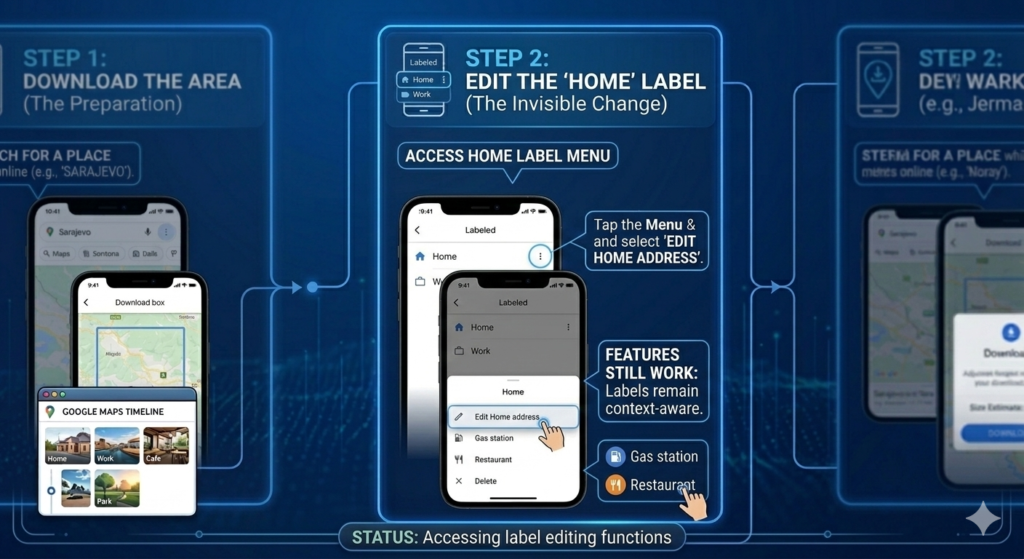
  1. Find Home in your list of labeled places
  2. Tap the three-dot menu (⋮) next to the Home address
  3. Select Edit Home address from the menu
  4. The address field will open—start typing your new address
  5. Google will suggest matching addresses; tap the correct one
  6. Tap Save (blue button) to confirm

Step 3: Verify the Change

  1. After saving, you’ll return to your labeled places screen
  2. Confirm the new address appears next to “Home”
  3. The change syncs instantly across all your devices logged into the same Google account

Method 2: Change Home Address on Computer

Step 1: Sign In to Google Maps

  1. Open a web browser and go to maps.google.com
  2. Ensure you’re signed into your Google account

Step 2: Access Your Places

  1. Click the three-line menu (hamburger icon) in the top-left corner
  2. Select Your places from the menu
  3. Click the Labeled tab

Step 3: Edit Your Home Address

  1. Find Home in your labeled places list
  2. Click the pencil icon (edit) next to the Home address
  3. Type your new address in the search field
  4. Select the correct address from the dropdown suggestions
  5. Click Save

Step 4: Confirm

  1. Your labeled places screen now shows the updated address
  2. The change is immediate and syncs to your mobile devices

Method 3: Using Google Search (Quickest Method)

This is the fastest way to update your home address without opening Maps directly.

Step 1: Open any browser and go to google.com or open the Google app

Step 2: Type “edit home address” in the search bar

Step 3: Google will display your current home address with an Edit option

Step 4: Click or tap Edit, enter your new address, and save

Step 5: Confirm the change—it syncs instantly with Google Maps


Method 4: Using Google Assistant

If you have a Google Assistant-enabled device:

  1. Say “Hey Google, change my home address”
  2. Assistant will ask for your new address
  3. Speak or type the address when prompted
  4. Assistant confirms the update and applies it to your Google account

What About Work Address?

The process for changing your work address is identical:

  1. Follow the same steps above to access Labeled places
  2. Find Work in your list
  3. Tap the three-dot menu (⋮) and select Edit Work address
  4. Enter the new address and save

Important Notes About Google Maps Addresses

Cloud Sync Works Differently Than Offline Maps

Unlike offline maps data (which must be downloaded per device), your labeled places like Home and Work sync automatically across all devices . Once you update your address on one device, it immediately reflects on:

  • Google Maps on all your phones and tablets
  • Google Search on any browser
  • Google Assistant
  • Google Calendar (for commute estimates)
  • Google Home devices

Address Formatting Matters

Google Maps uses a validated address system. When typing your address, always select from the suggested dropdown rather than typing the complete address manually. This ensures:

  • Correct formatting
  • Accurate pin placement on the map
  • Proper navigation instructions

Privacy Considerations

Your home address is stored in your Google account and used across Google services. If you’re concerned about privacy:

  • Review your Google Activity Controls to manage what data is saved
  • Consider using a PO Box or commercial address for public-facing services
  • Remember that Google uses this information to personalize your experience—you can’t fully disable this without losing functionality

Troubleshooting Common Issues

“I don’t see the Labeled option”

Solution:

  • Ensure you’re signed into your Google account
  • Make sure you have at least one labeled place (Home or Work) already set
  • If you’ve never set a home address, you’ll see an option to Add home instead

“The new address isn’t showing on my other devices”

Solution:

  • Give it a few minutes—sync usually happens instantly but can sometimes take up to 5 minutes
  • Force close and restart Google Maps on other devices
  • Check you’re signed into the same Google account on all devices
  • Pull down to refresh in the Saved or Labeled screen

“Google keeps suggesting my old address”

Solution:

  • Clear your Google Maps app cache (Android: Settings → Apps → Google Maps → Storage → Clear Cache)
  • On iPhone, offload and reinstall the app
  • The change should propagate within 24 hours maximum

“I moved to a new country—will this work?”

Solution: Yes, but note:

  • Google services vary by region
  • Some features may not be available in all countries
  • You may need to update your Google account country settings separately

“Can I set multiple homes or works?”

Solution: No, Google Maps only supports one Home and one Work address per account. If you need multiple saved addresses, create custom labels (e.g., “Mom’s House,” “Gym”).


Quick Reference Card

TaskAction
Change home on mobileSaved → Labeled → Home → ⋮ → Edit Home address → Type new address → Save
Change home on computerMenu → Your places → Labeled → Home → Pencil icon → Type new address → Save
Change home via Google SearchSearch “edit home address” → Edit → Type new address → Save
Change home via Assistant“Hey Google, change my home address” → Follow prompts
Change work addressSame steps, select Work instead of Home
Sync across devicesAutomatic once saved—no manual steps needed

Final Checklist

✅ Signed into correct Google account
✅ Accessed Saved → Labeled section
✅ Edited Home address with new location
✅ Selected from Google’s validated address suggestions
✅ Saved changes
✅ Verified on other devices
✅ Updated Work address if needed


Final Verdict

Changing your home address in Google Maps takes less than a minute but makes a significant difference in your daily Google experience. Updated addresses mean better commute times, more relevant recommendations, and seamless integration across all your devices.

The best part? Unlike offline maps that require manual downloads per device, your labeled places sync automatically through the cloud. Update once, and every Google service you use—from Maps to Assistant to Calendar—immediately knows where you call home.
Leave a Reply

Your email address will not be published. Required fields are marked *