Physical Address
304 North Cardinal St.
Dorchester Center, MA 02124
Physical Address
304 North Cardinal St.
Dorchester Center, MA 02124
Gadgets & Lifestyle for Everyone
Gadgets & Lifestyle for Everyone
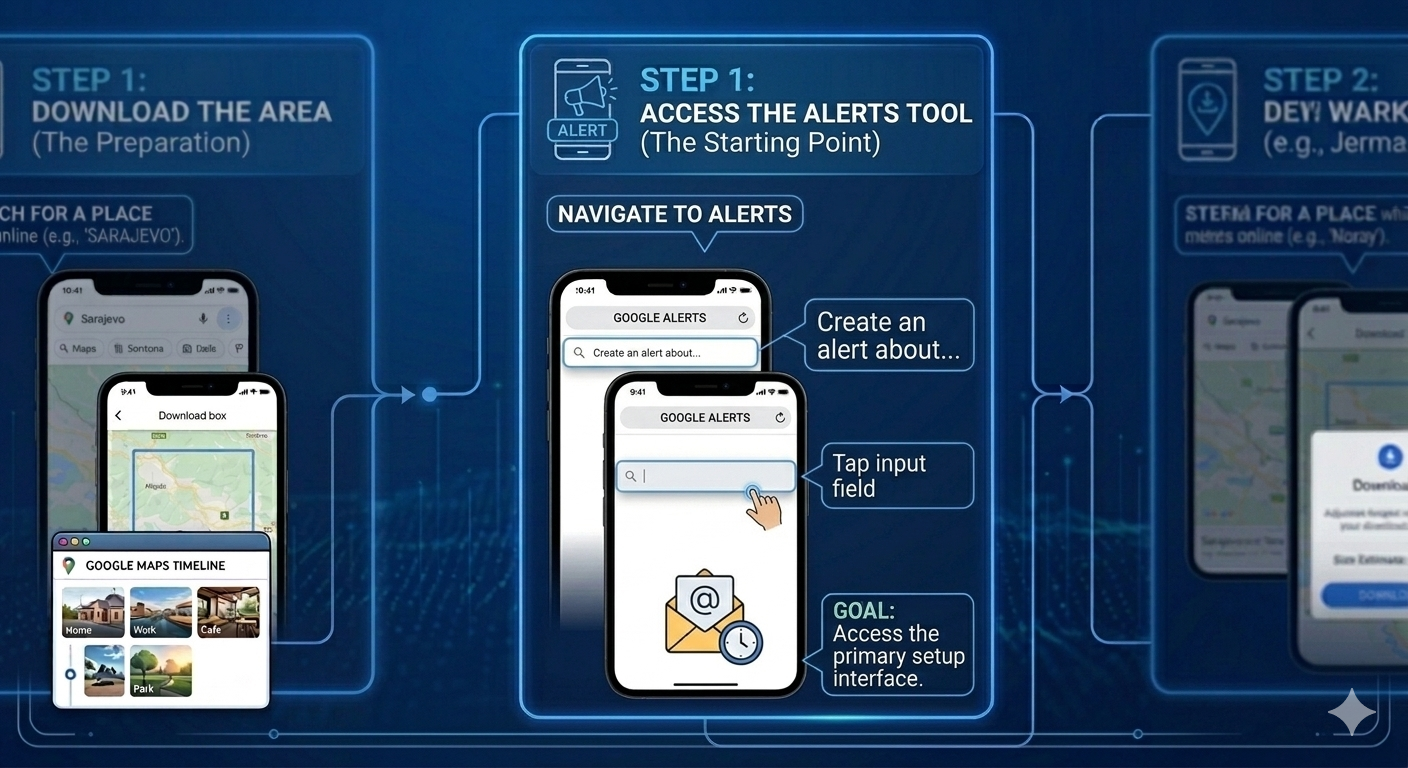
Google Alerts is a powerful, free tool that automatically notifies you when new content matching your interests appears online. Whether you’re monitoring your brand, tracking competitors, or staying updated on specific topics, this guide walks you through everything you need to know about how to set up Google Alerts effectively.
| Benefit | What It Means |
|---|---|
| Brand monitoring | Get notified whenever your company or product name appears online |
| Competitor research | Track what others are saying about competing businesses |
| Reputation management | Respond quickly to mentions—positive or negative |
| Topic tracking | Stay updated on industry news, research, or personal interests |
| Backlink monitoring | Discover who’s linking to your content (with specific queries) |
| Journalist tool | Find sources, track trends, and discover story ideas |
Best of all, it’s completely free and runs automatically once set up.
The first step is navigating to the correct section of your Google Account where alerts are managed.
How to access:
Note: There’s no Google Alerts app—the service runs through your browser and delivers notifications via email.
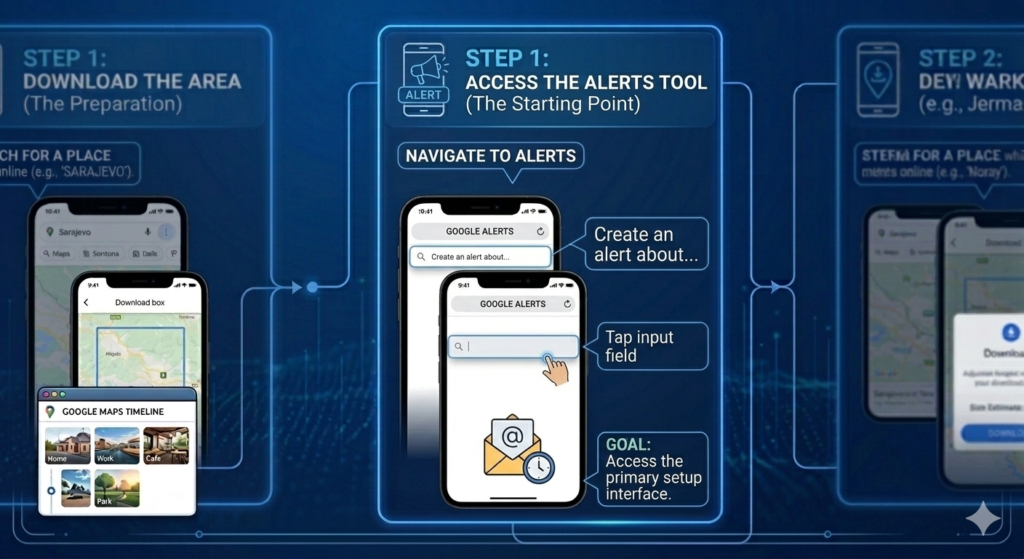
Once you’re in the tool, the query you define must be specific. This isn’t a standard search that returns results—it’s a persistent filter that monitors new content invisibly.
How to define your alert:
Pro Tip: Use Search Operators for Precision
| Operator | Example | What It Does |
|---|---|---|
| Quotes | "climate change" | Exact phrase match—more precise |
| Minus sign | apple -fruit | Excludes results about fruit |
| Plus sign | +Tesla | Forces inclusion (useful for common words) |
| OR | Tesla OR SpaceX | Either term appears |
| Site: | site:nytimes.com Tesla | Limits to specific website |
Access Advanced Options:
After typing your query, you’ll notice a “Show options” button appears below the text box. This is where you customize your alert’s behavior.
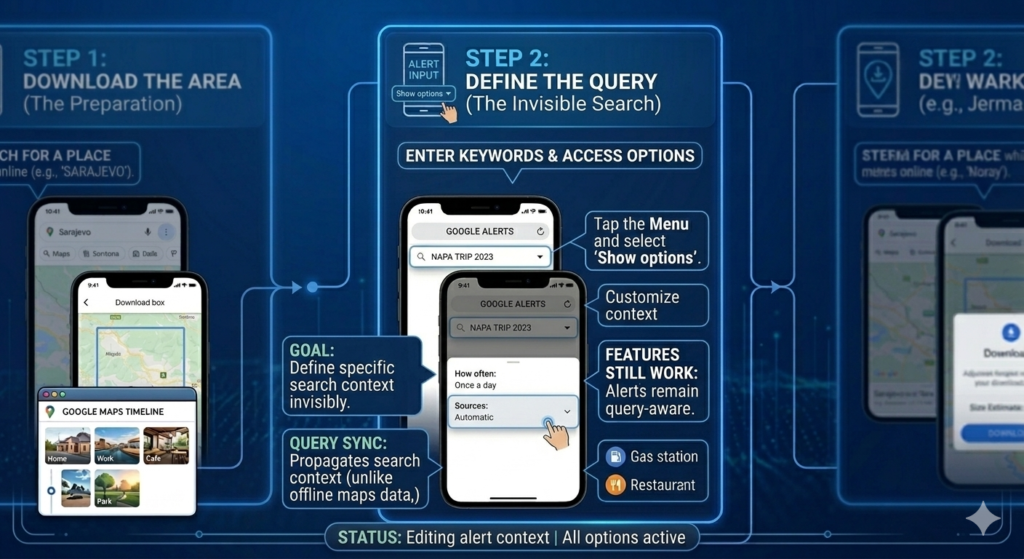
This final step confirms your alert and customizes notification settings to match your preferences. Unlike downloading offline maps data, alerts run invisibly via the cloud and deliver directly to your inbox.
How to customize and save:
| Setting | Options | Recommendation |
|---|---|---|
| How often | As-it-happens, Once a day, Once a week | Use “As-it-happens” for critical monitoring; “Once a day” for general topics |
| Sources | Automatic, News, Blogs, Web, Video, Books, Discussions, Finance | Select specific sources to reduce noise |
| Language | Choose from dozens of languages | Match your query language |
| Region | Any country or specific region | Narrow to relevant geographic areas |
| How many | Only the best results, All results | “Best results” filters for relevance |
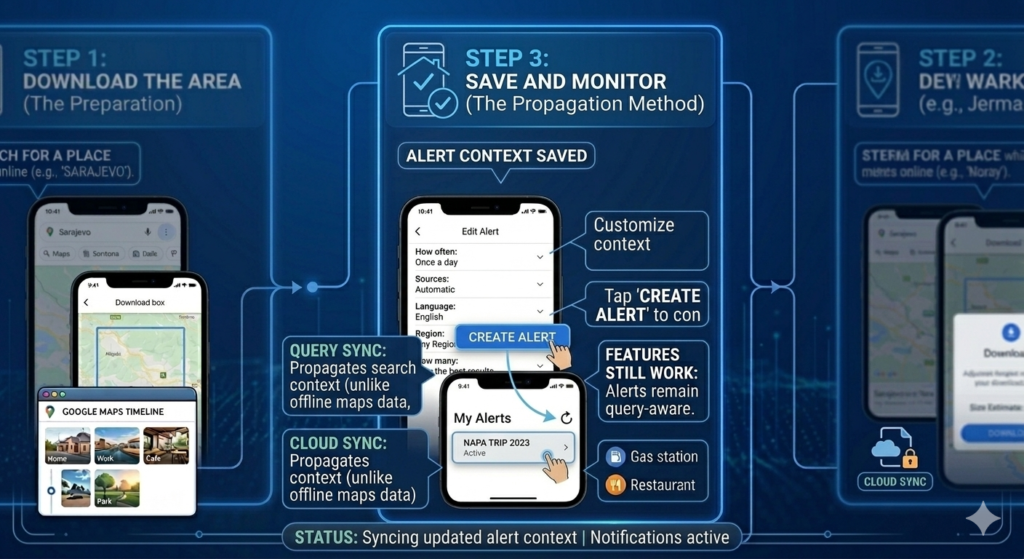
To verify your alert works:
Create multiple alerts for your brand:
"Your Company Name" (exact match)Your Company Name (without quotes, catches variations)yourcompany.com (domain mentions)"Your Name" (if you’re a public figure)Set alerts for:
site:competitor.com)Create alerts like:
"write for us" + "your niche""guest post" + "technology""contributor guidelines" + "marketing"Use broad terms with specific exclusions:
artificial intelligence -machine learning (if you want AI news excluding ML)renewable energy -solar (if you’re focused on non-solar renewables)If Google Search Console shows sites linking to you, set alerts for those domains to catch new mentions.
| Feature | Google Alerts | Paid Tools (Mention, Brandwatch) |
|---|---|---|
| Price | Free | $30–$500+ monthly |
| Coverage | Web, News, Blogs | Web + Social media + Forums + Reviews |
| Historical data | No | Yes |
| Analytics | Minimal | Detailed reports, sentiment analysis |
| Real-time | As-it-happens option | Usually real-time |
| Volume limits | 1,000 alerts | Unlimited (at higher tiers) |
Verdict: Google Alerts is excellent for basic monitoring. For social media tracking or deep analytics, consider paid tools.
Possible reasons:
Solutions:
Google Alerts primarily covers web content, news, and blogs. For social media monitoring, you’ll need dedicated tools.
Alerts go to your Google Account’s primary email. To change delivery:
| Task | Action |
|---|---|
| Create alert | google.com/alerts → Type query → Show options → Customize → Create Alert |
| Edit alert | google.com/alerts → Pencil icon → Modify → Update Alert |
| Delete alert | google.com/alerts → Trash icon → Confirm |
| Use exact phrase | "your keywords" |
| Exclude terms | keyword -excluded |
| Limit to site | site:example.com keyword |
| Multiple terms | term1 OR term2 |
✅ Signed into Google Account
✅ Visited google.com/alerts
✅ Created alerts for important keywords
✅ Used search operators for precision
✅ Customized frequency and sources
✅ Tested alerts with controlled content
✅ Reviewed dashboard for all active alerts
✅ Set up alerts for brand, competitors, and topics
Google Alerts remains one of the most underutilized free tools available. Once you understand how to set up Google Alerts properly—using search operators, customizing delivery, and managing multiple alerts—it becomes an invaluable asset for brand monitoring, competitive research, and staying informed.
The key to success is precision. Generic alerts flood your inbox with noise. Well-crafted alerts deliver actionable intelligence directly to your email, helping you spot opportunities and address issues before they escalate.
Start with a few critical alerts, refine them based on results, and gradually expand your monitoring network. Within weeks, you’ll wonder how you ever managed without it.



