Physical Address
304 North Cardinal St.
Dorchester Center, MA 02124
Physical Address
304 North Cardinal St.
Dorchester Center, MA 02124
Gadgets & Lifestyle for Everyone
Gadgets & Lifestyle for Everyone
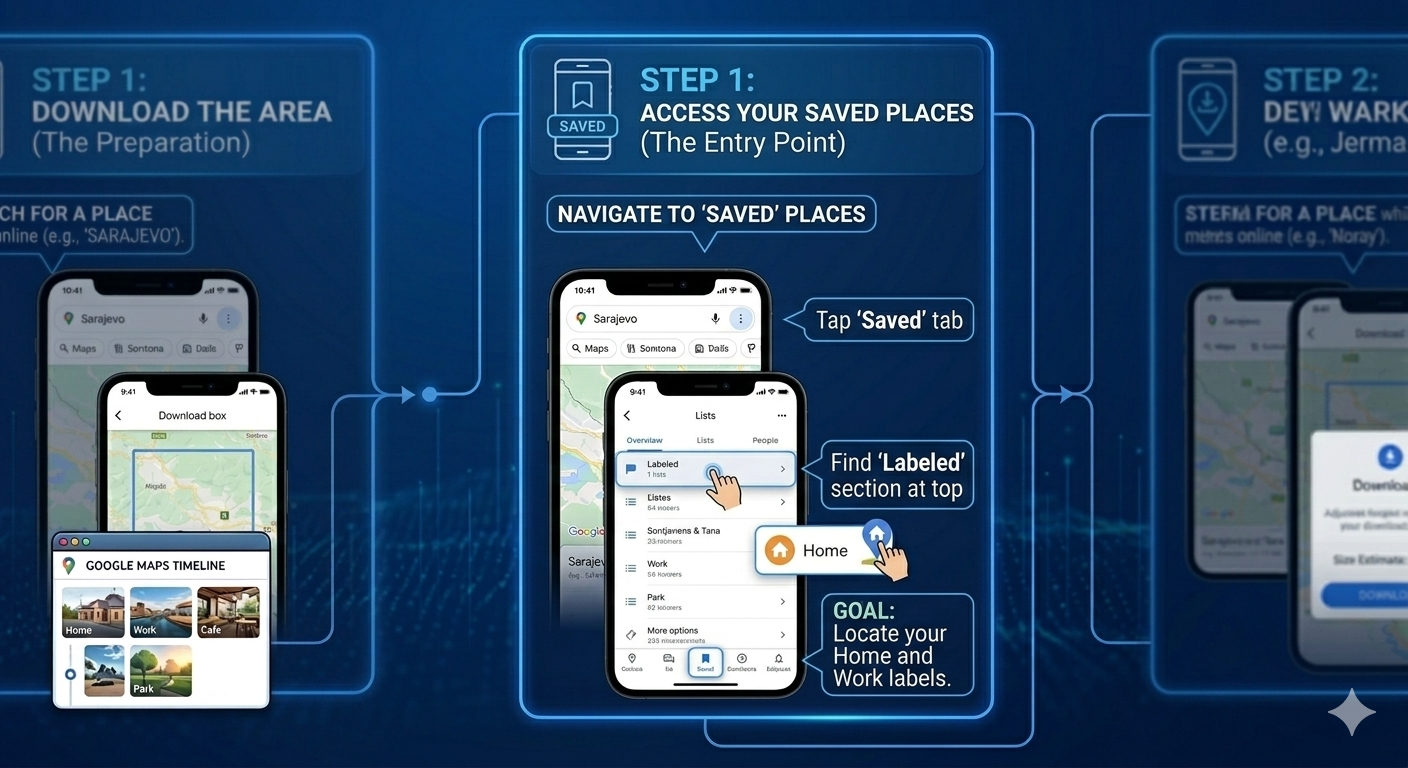
Your home and work addresses in Google Maps power more than just navigation. They influence commute estimates, local recommendations, restaurant suggestions, and even traffic alerts. When you move to a new place, updating this information ensures Google continues serving you accurately. Here’s your complete guide on how to change home address in Google Maps across all devices.
| Benefit | What It Means |
|---|---|
| Accurate commute times | Get real traffic estimates for your actual daily route |
| Better local recommendations | Restaurant and business suggestions match your new neighborhood |
| Relevant traffic alerts | Receive notifications about incidents along your current routes |
| Correct weather info | Weather updates reflect where you actually live |
| Seamless Google integration | Your address syncs across Search, Assistant, and Calendar |
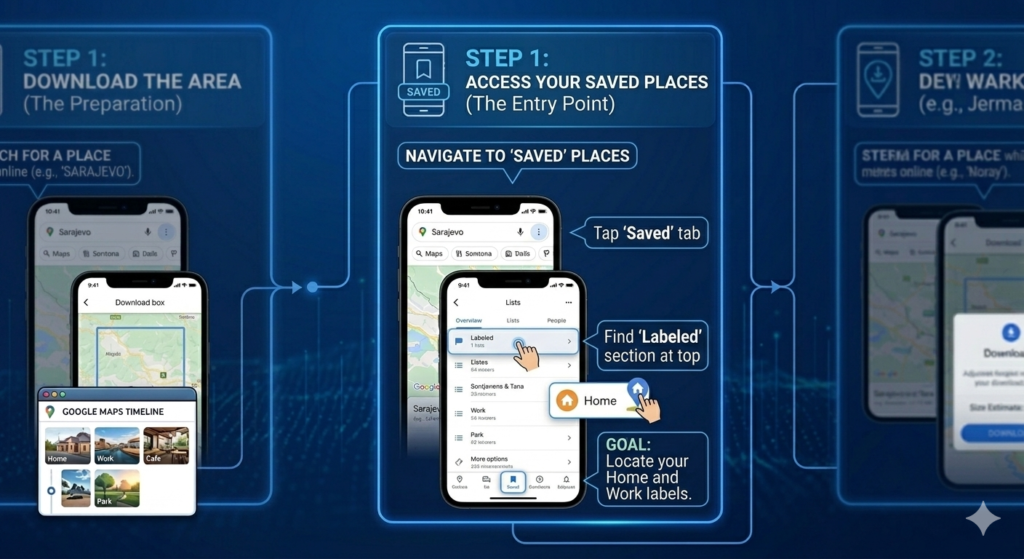
Step 1: Access Your Saved Places
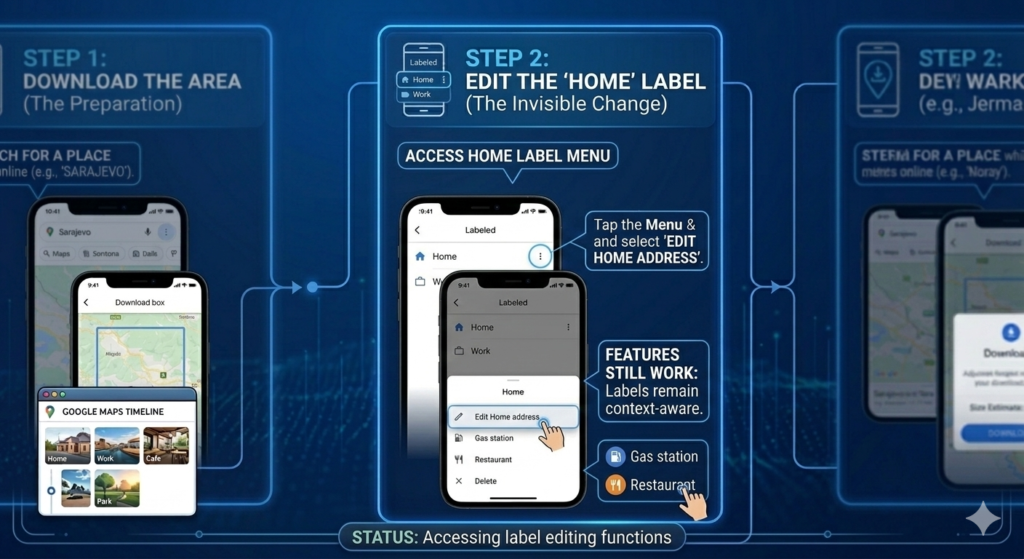
Step 2: Edit Your Home Address
Step 3: Verify the Change
Step 1: Sign In to Google Maps
Step 2: Access Your Places
Step 3: Edit Your Home Address
Step 4: Confirm
This is the fastest way to update your home address without opening Maps directly.
Step 1: Open any browser and go to google.com or open the Google app
Step 2: Type “edit home address” in the search bar
Step 3: Google will display your current home address with an Edit option
Step 4: Click or tap Edit, enter your new address, and save
Step 5: Confirm the change—it syncs instantly with Google Maps
If you have a Google Assistant-enabled device:
The process for changing your work address is identical:
Unlike offline maps data (which must be downloaded per device), your labeled places like Home and Work sync automatically across all devices . Once you update your address on one device, it immediately reflects on:
Google Maps uses a validated address system. When typing your address, always select from the suggested dropdown rather than typing the complete address manually. This ensures:
Your home address is stored in your Google account and used across Google services. If you’re concerned about privacy:
Solution:
Solution:
Solution:
Solution: Yes, but note:
Solution: No, Google Maps only supports one Home and one Work address per account. If you need multiple saved addresses, create custom labels (e.g., “Mom’s House,” “Gym”).
| Task | Action |
|---|---|
| Change home on mobile | Saved → Labeled → Home → ⋮ → Edit Home address → Type new address → Save |
| Change home on computer | Menu → Your places → Labeled → Home → Pencil icon → Type new address → Save |
| Change home via Google Search | Search “edit home address” → Edit → Type new address → Save |
| Change home via Assistant | “Hey Google, change my home address” → Follow prompts |
| Change work address | Same steps, select Work instead of Home |
| Sync across devices | Automatic once saved—no manual steps needed |
✅ Signed into correct Google account
✅ Accessed Saved → Labeled section
✅ Edited Home address with new location
✅ Selected from Google’s validated address suggestions
✅ Saved changes
✅ Verified on other devices
✅ Updated Work address if needed
Changing your home address in Google Maps takes less than a minute but makes a significant difference in your daily Google experience. Updated addresses mean better commute times, more relevant recommendations, and seamless integration across all your devices.
The best part? Unlike offline maps that require manual downloads per device, your labeled places sync automatically through the cloud. Update once, and every Google service you use—from Maps to Assistant to Calendar—immediately knows where you call home.



